About the scenery
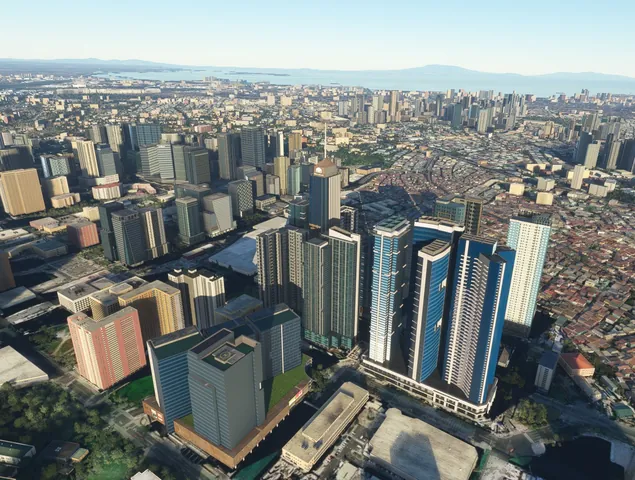
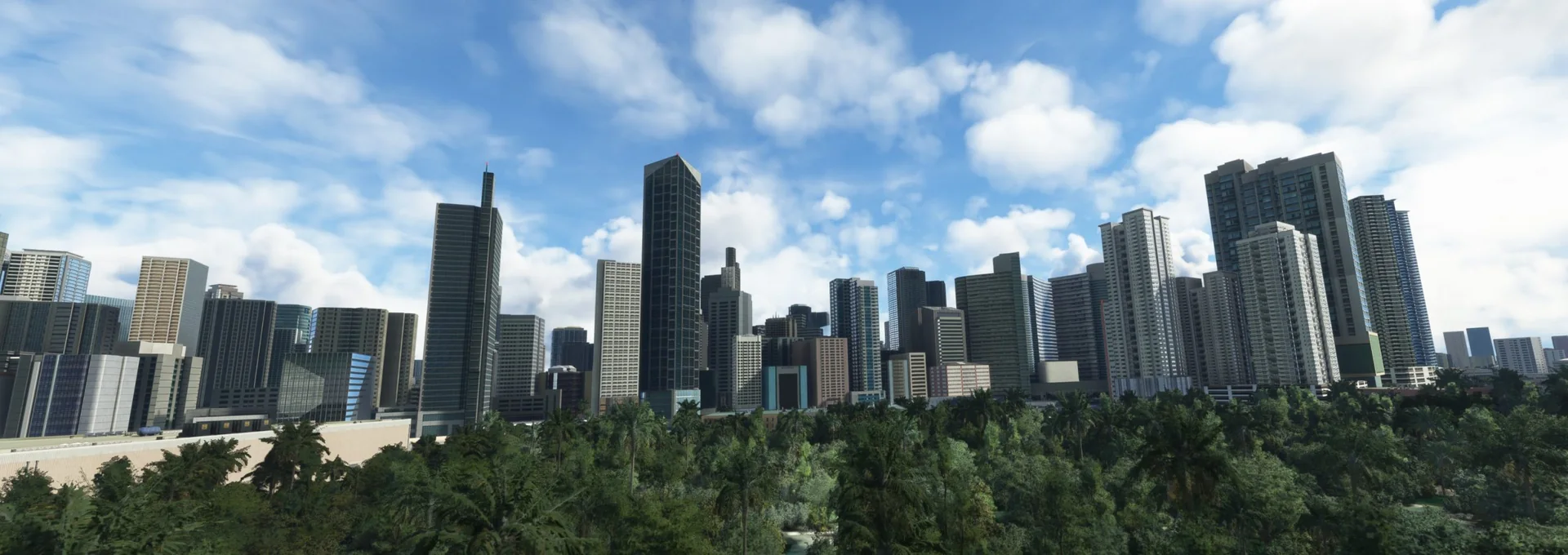
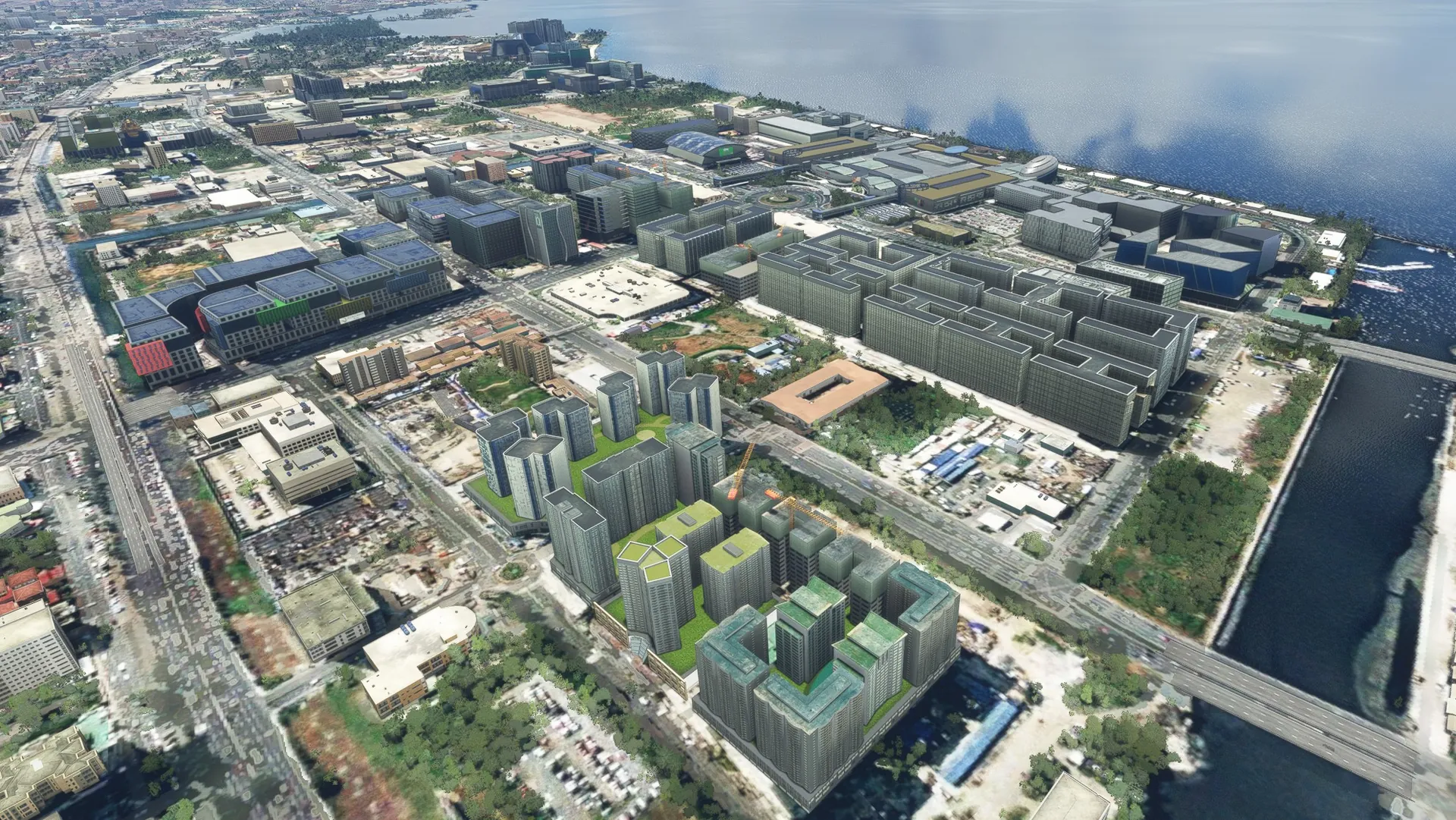
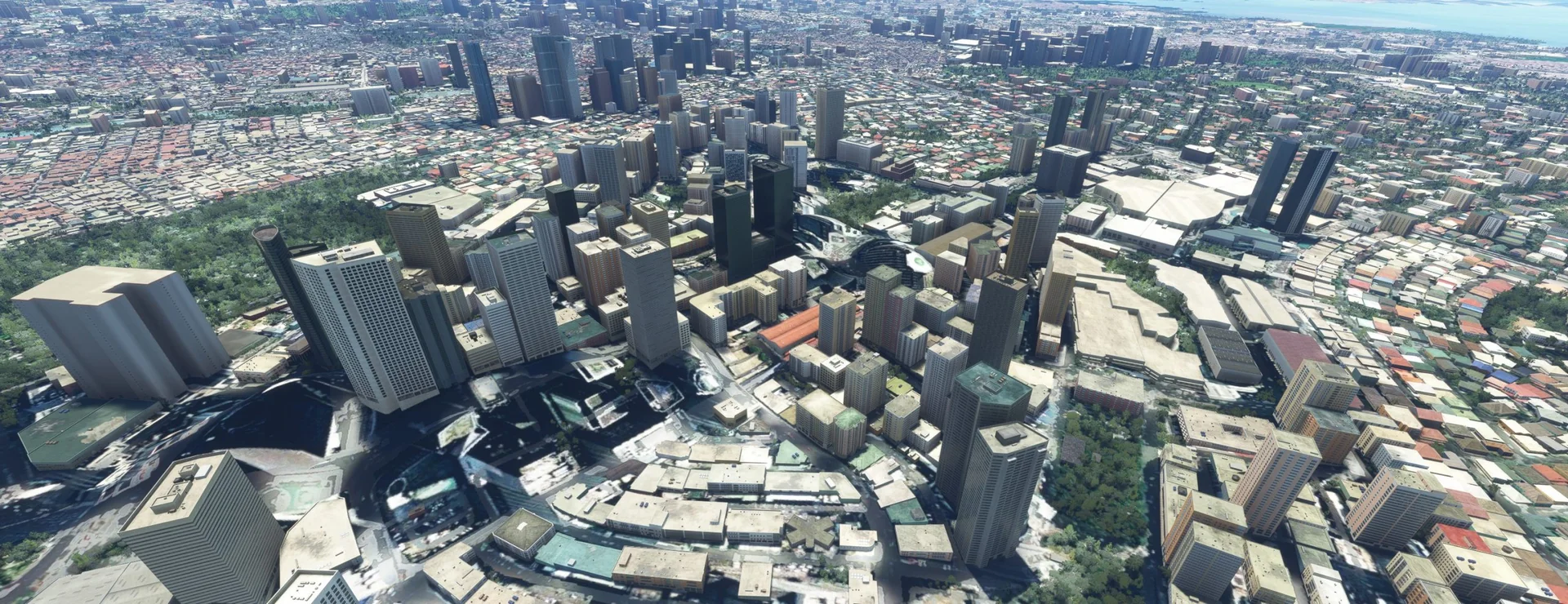
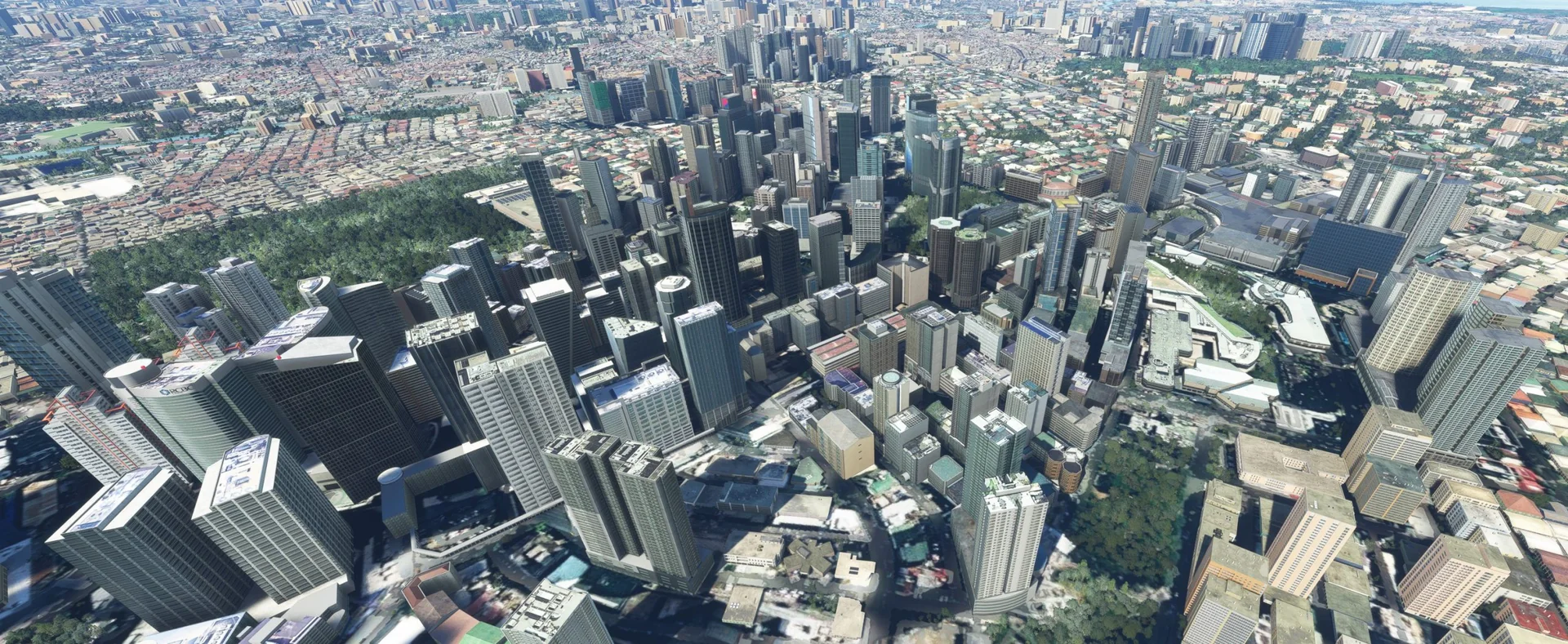
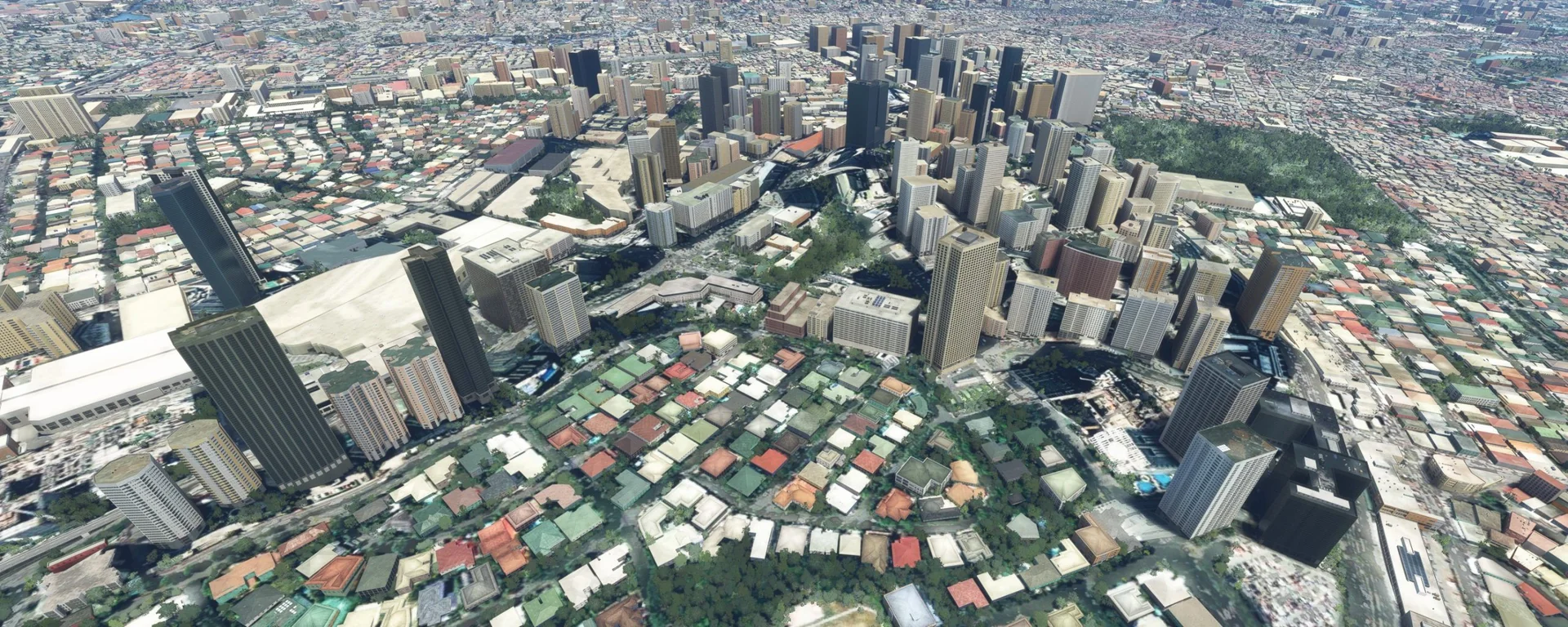
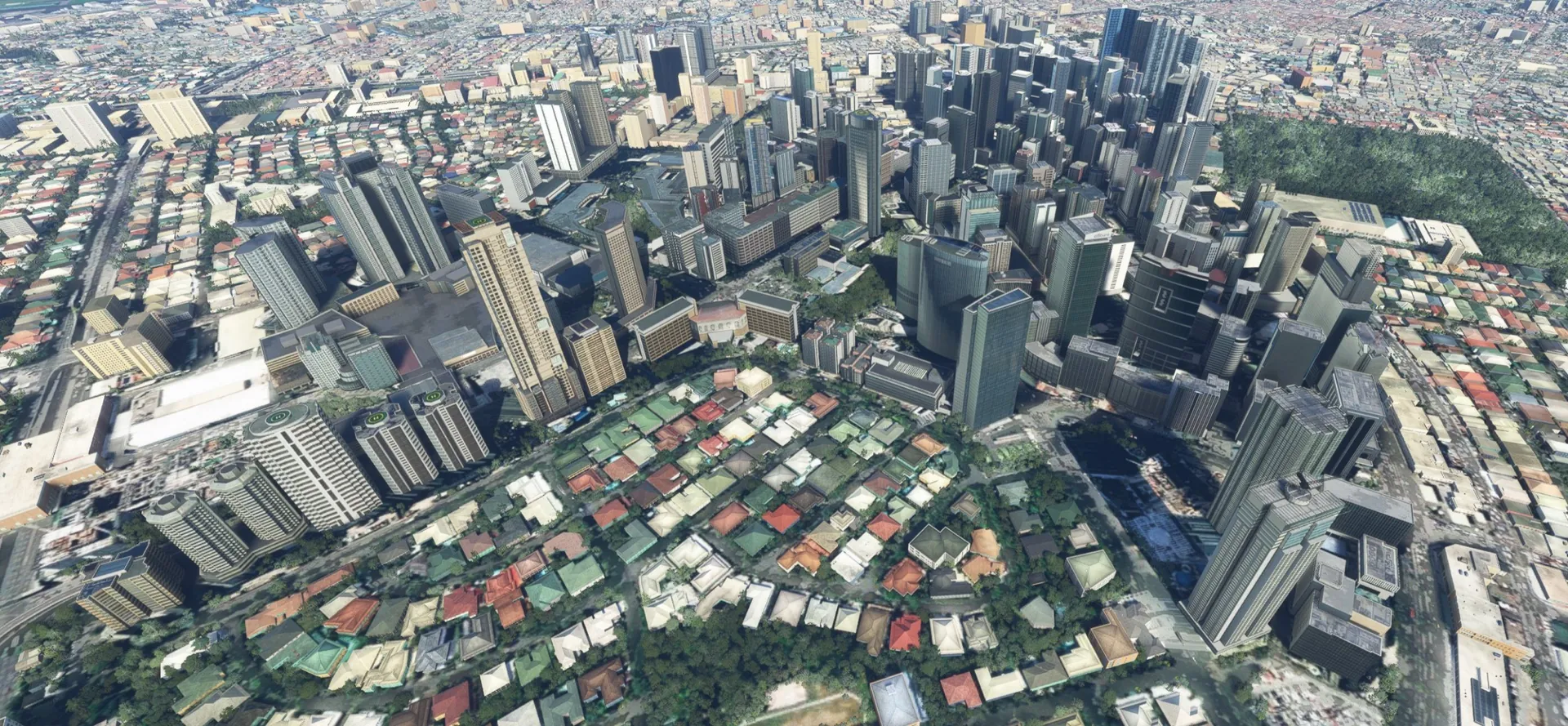
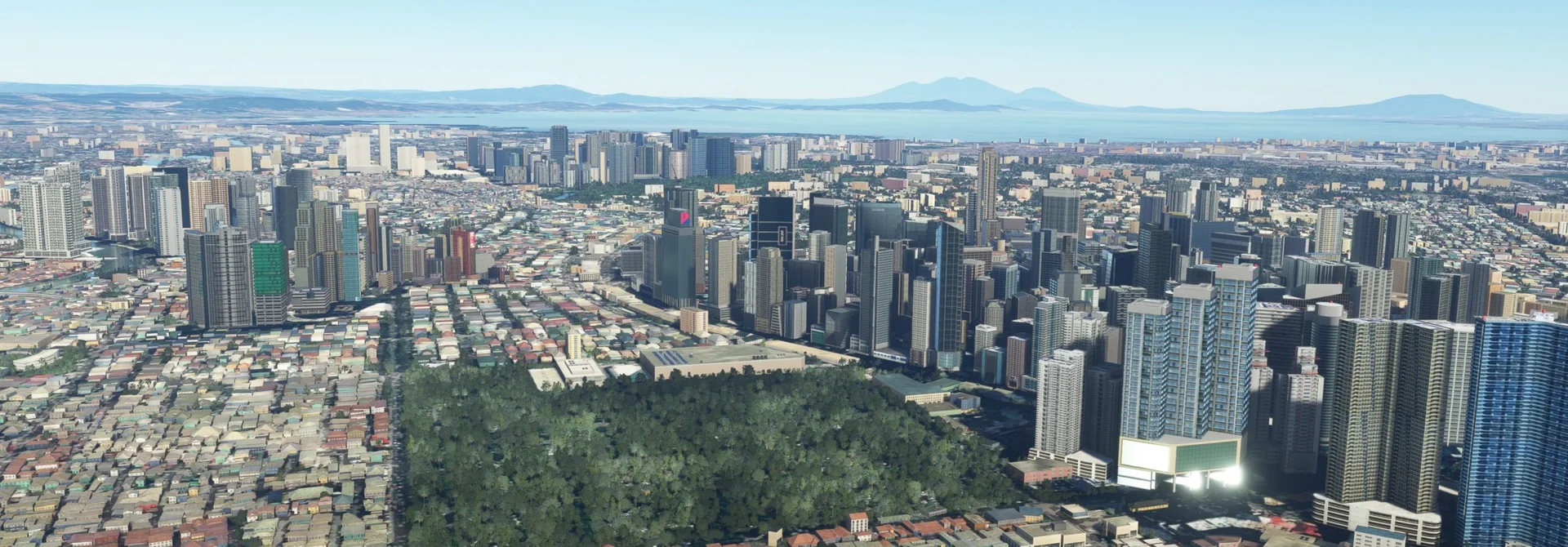
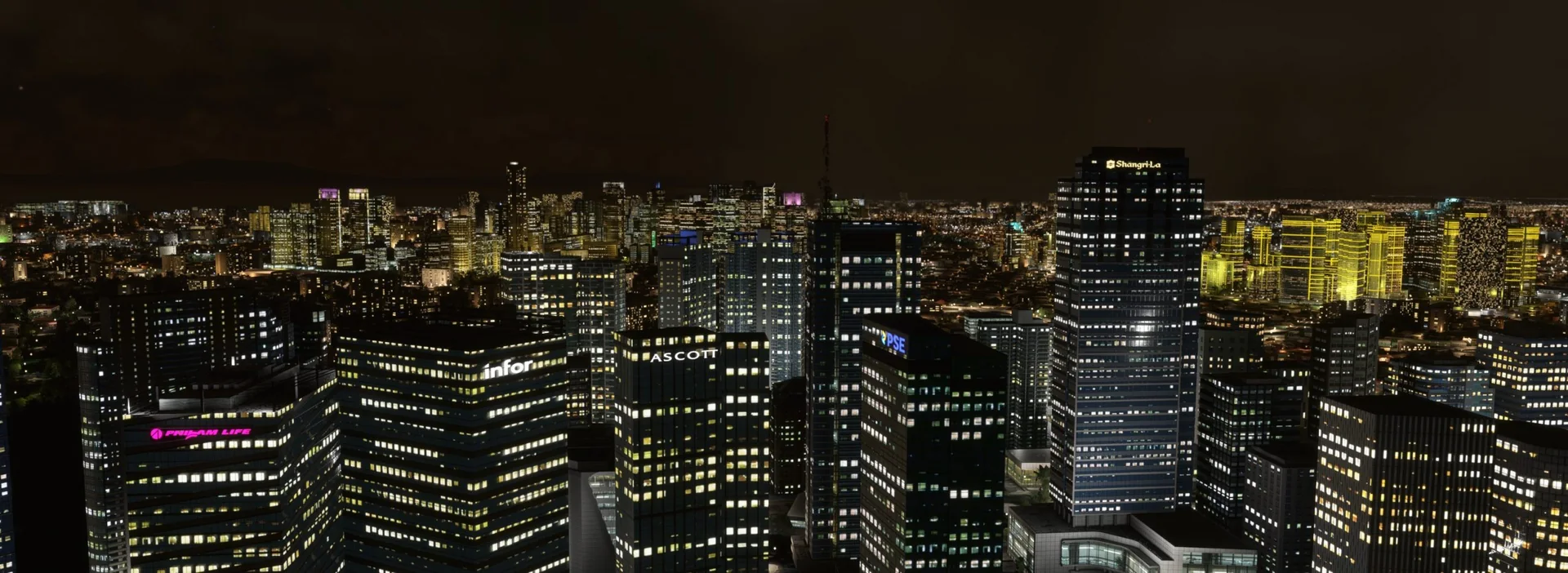
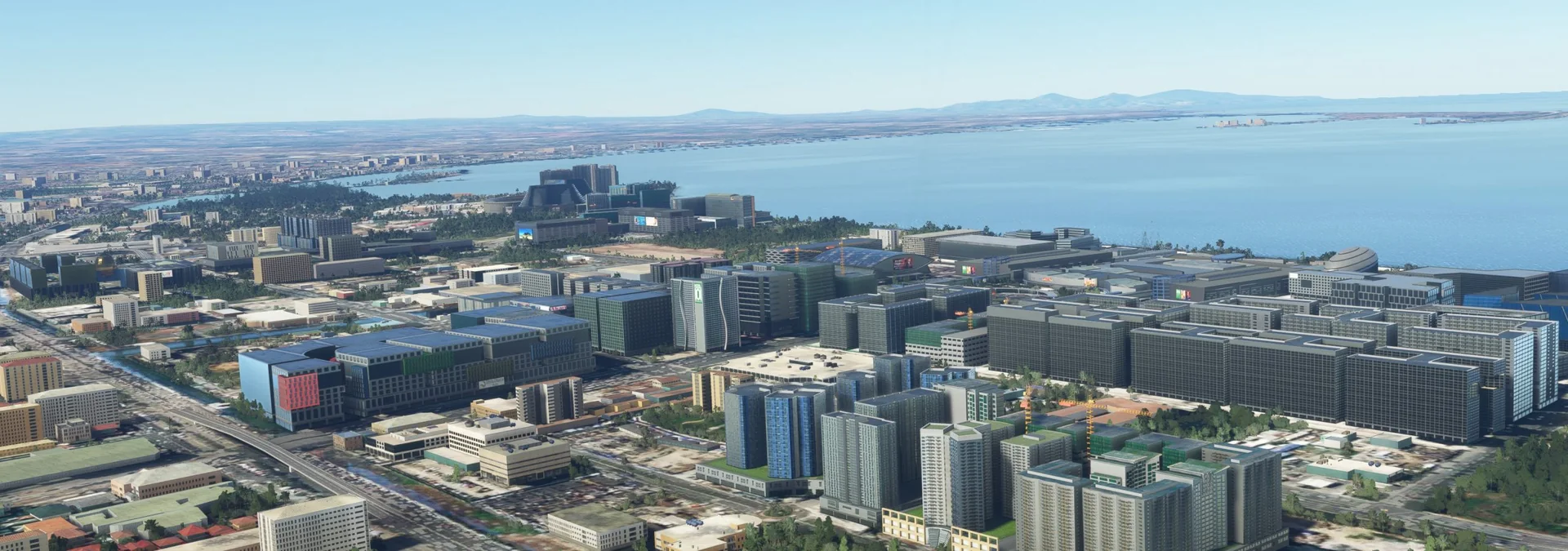
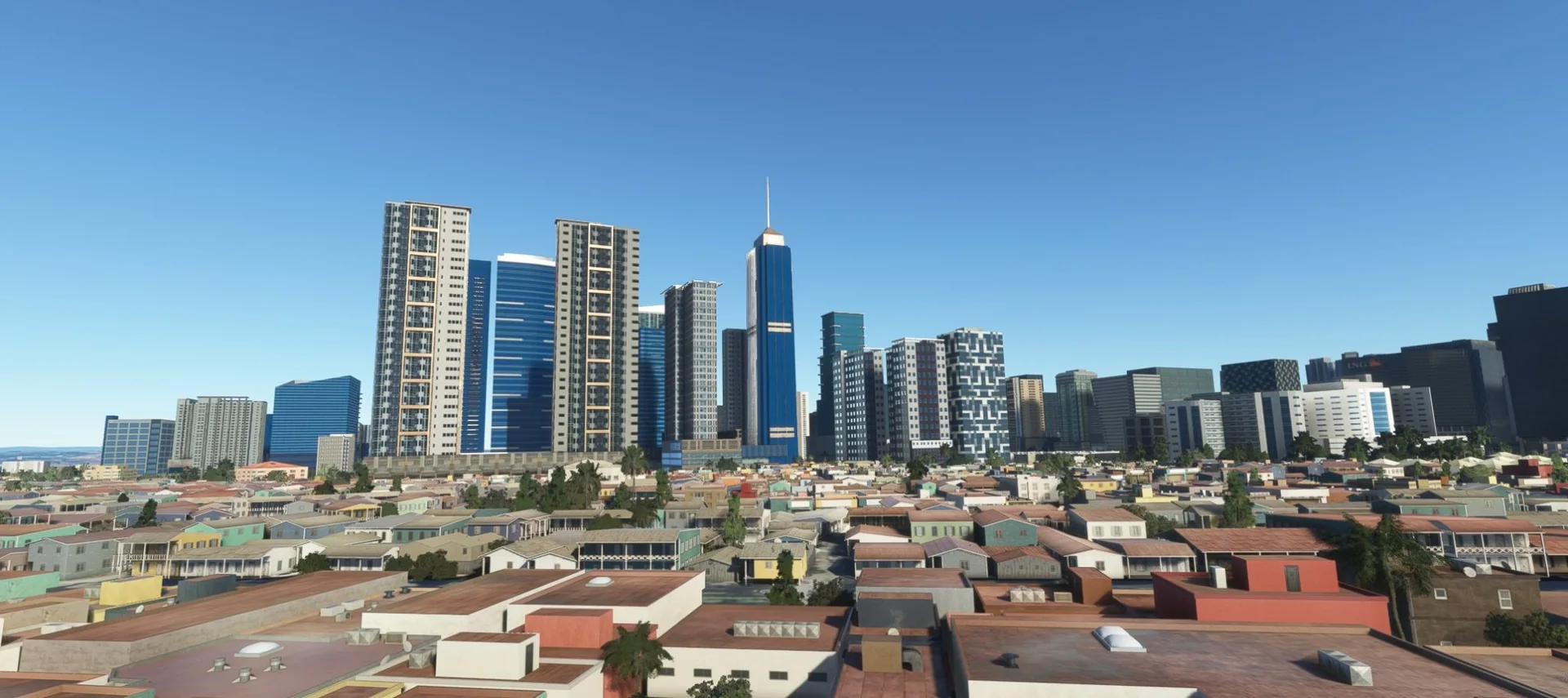
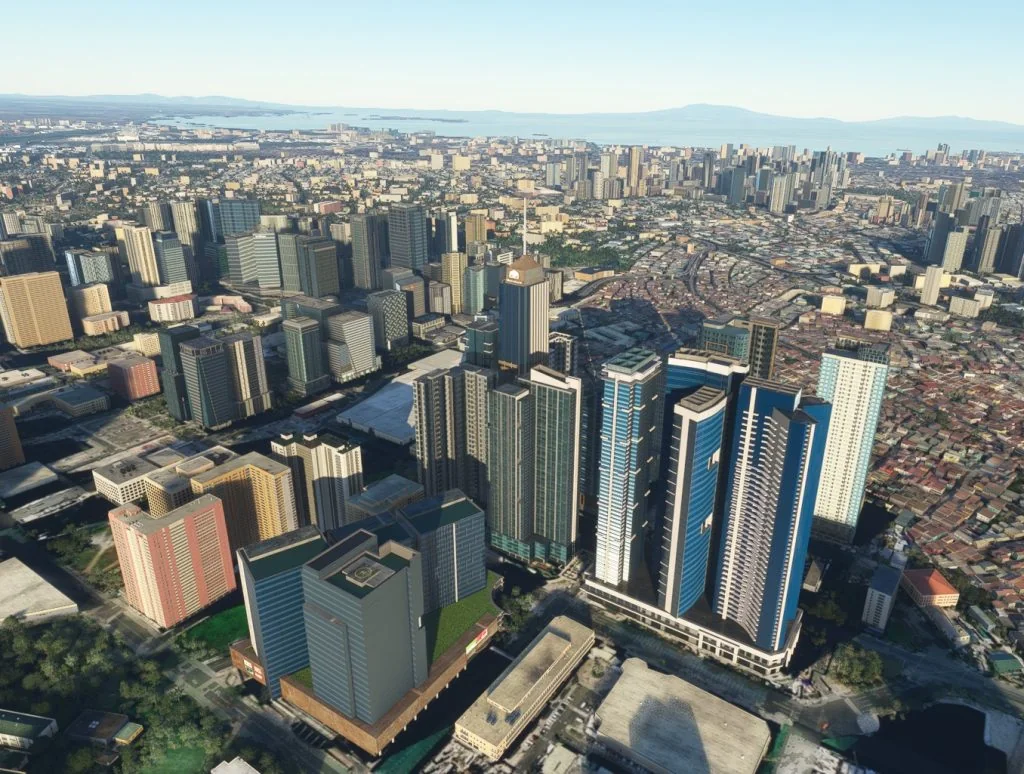
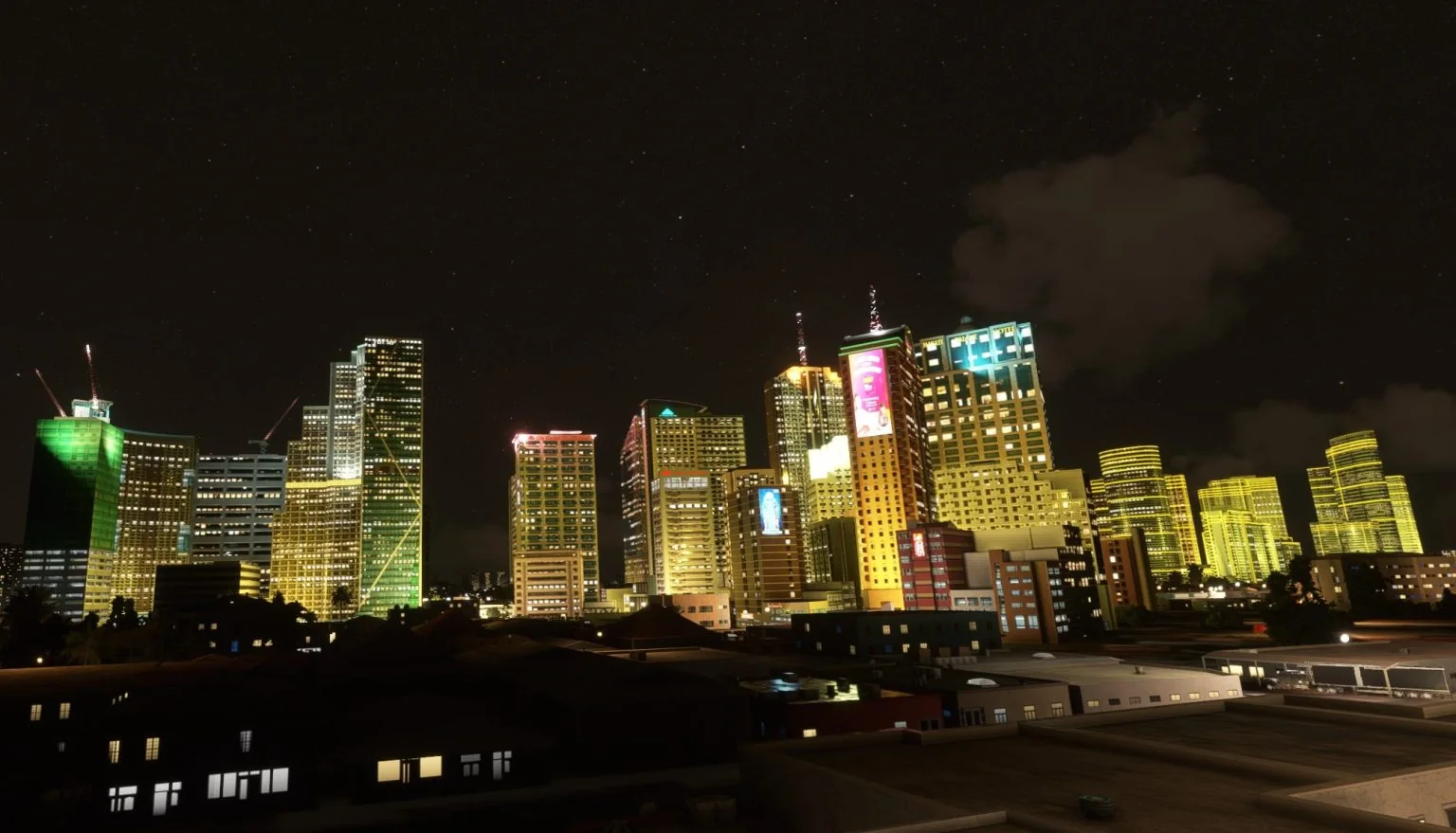
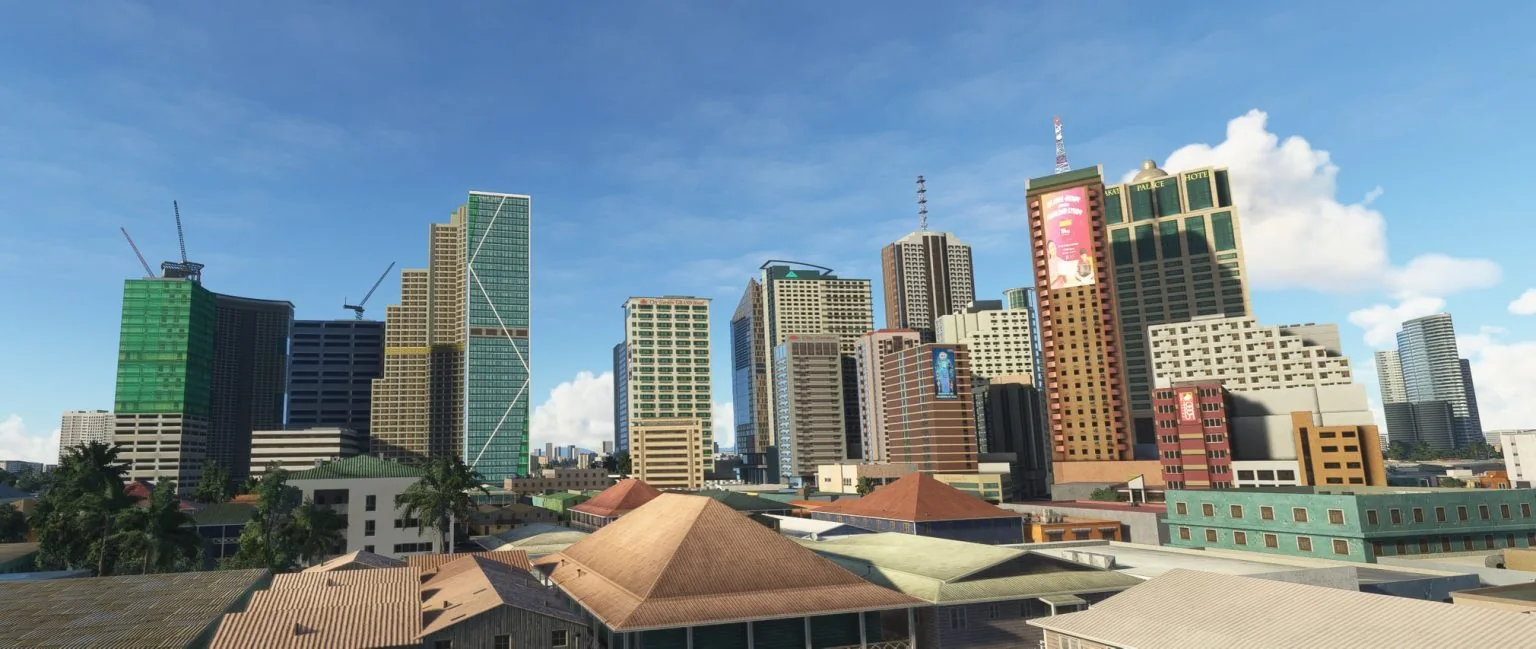
Mega Manila is one of our best handmade city sceneries to date, crafted with passion for MSFS. It is packed with hundreds of custom handmade objects, tailored carefully to represent Metro Manila as real as possible.
Metro Manila, officially the National Capital Region, is the seat of government of the Philippines. It is composed of 16 cities and the municipality of Pateros, covers 619.57 square kilometres and had a population of 13,484,462 in 2020. It is the centre of culture, economy, education and government of the Philippines.
Features
Built from scratch for MSFS
Hand-built for Microsoft Flight Simulator 2020 and 2024, with the native Microsoft Flight Simulator SDK.
Hundreds of 3D models
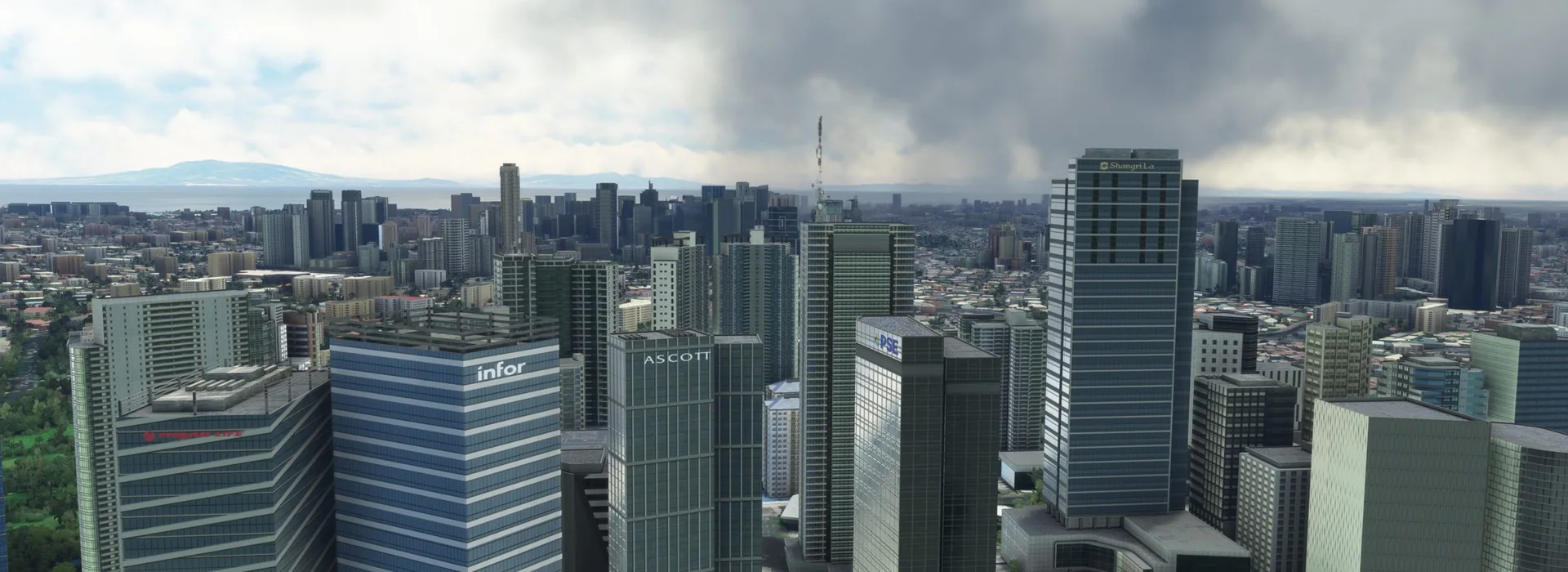
Hundreds of high-quality, authentic 3D models.
HD textures
High-definition textures in 2K-4K resolution.
Full PBR
Every single object in full PBR materials.
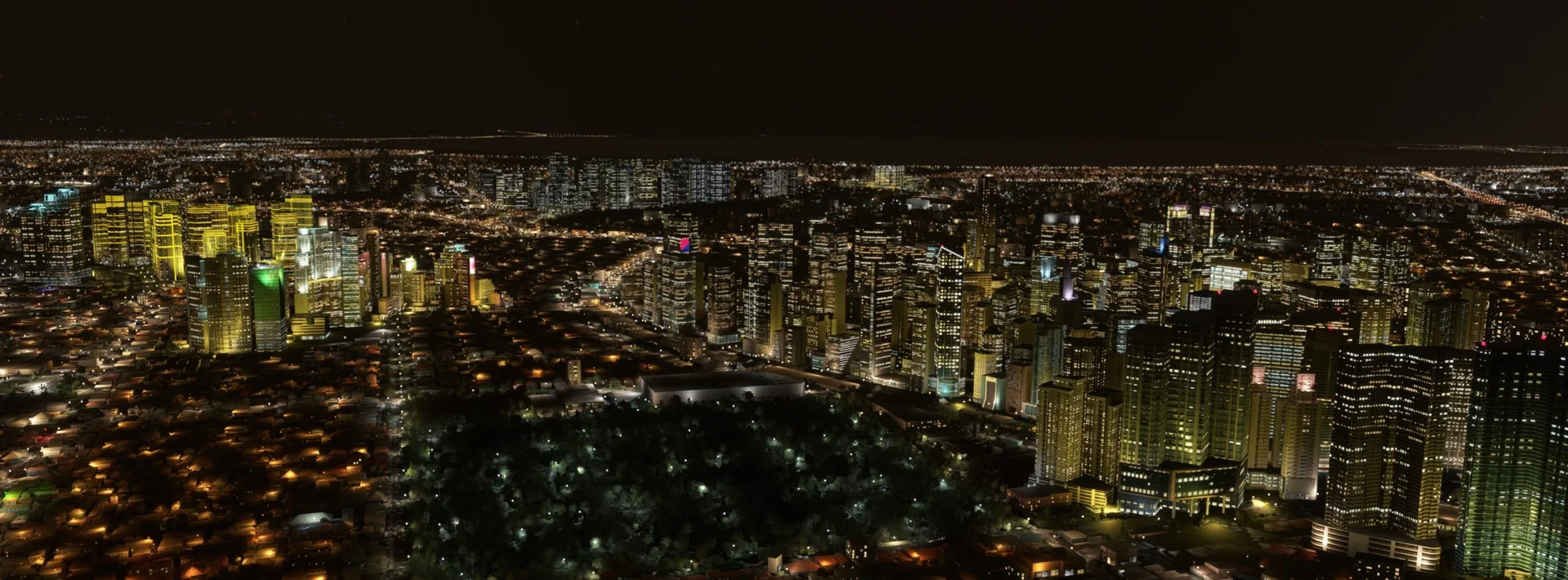
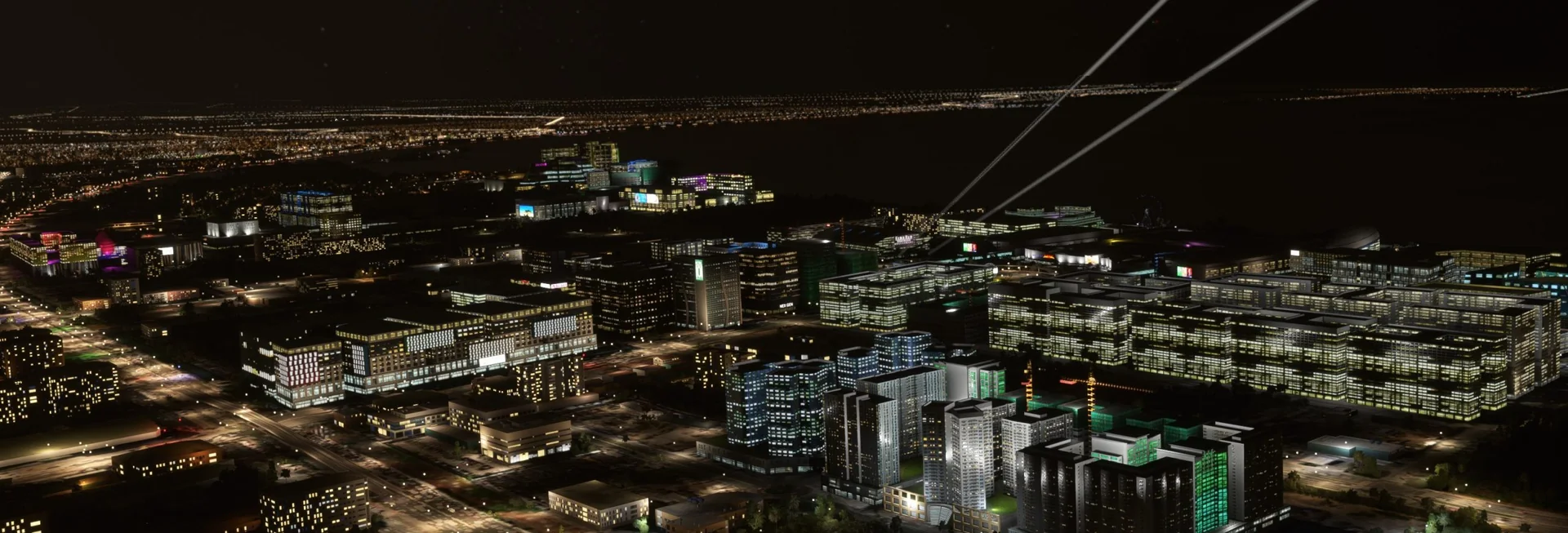
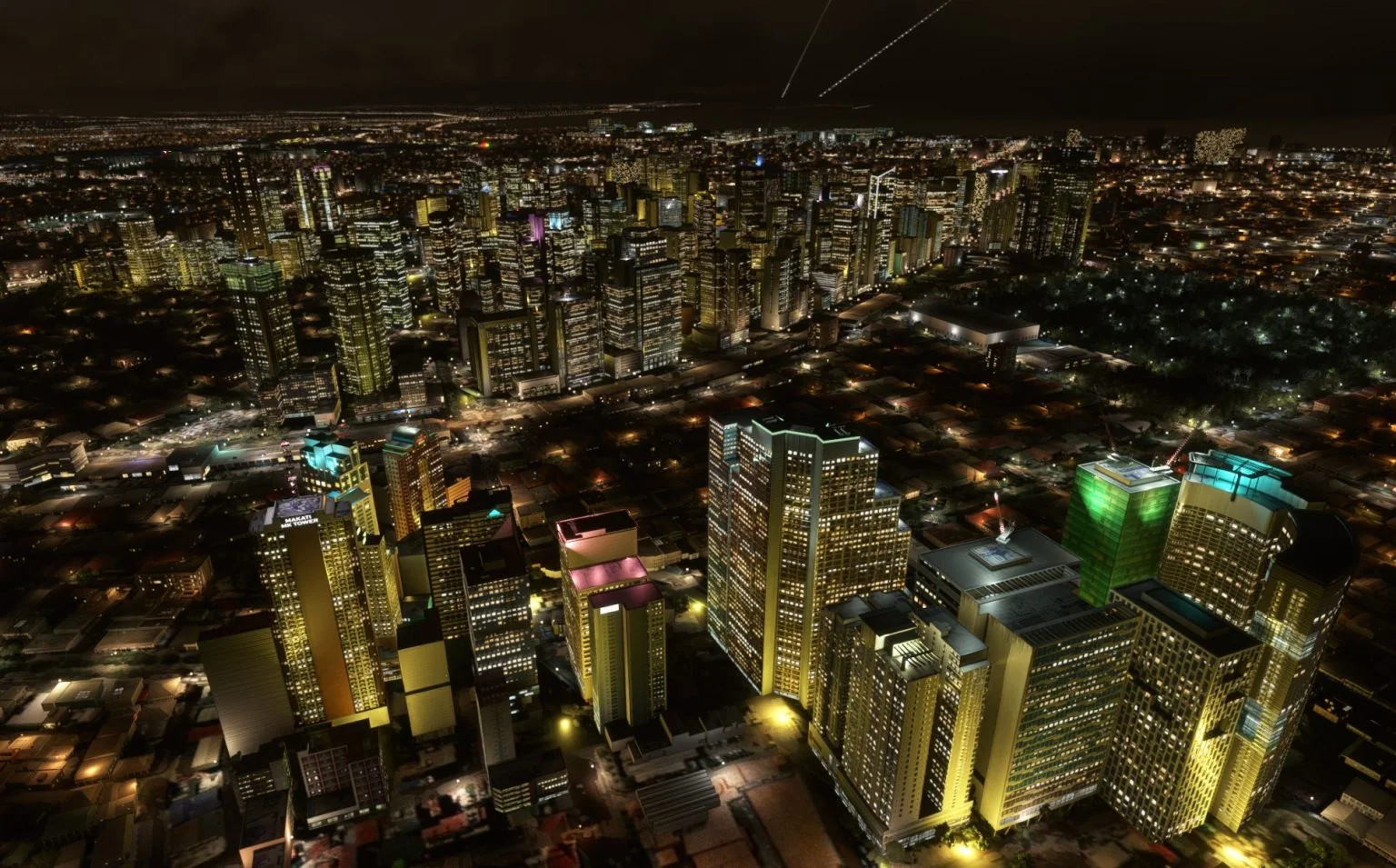
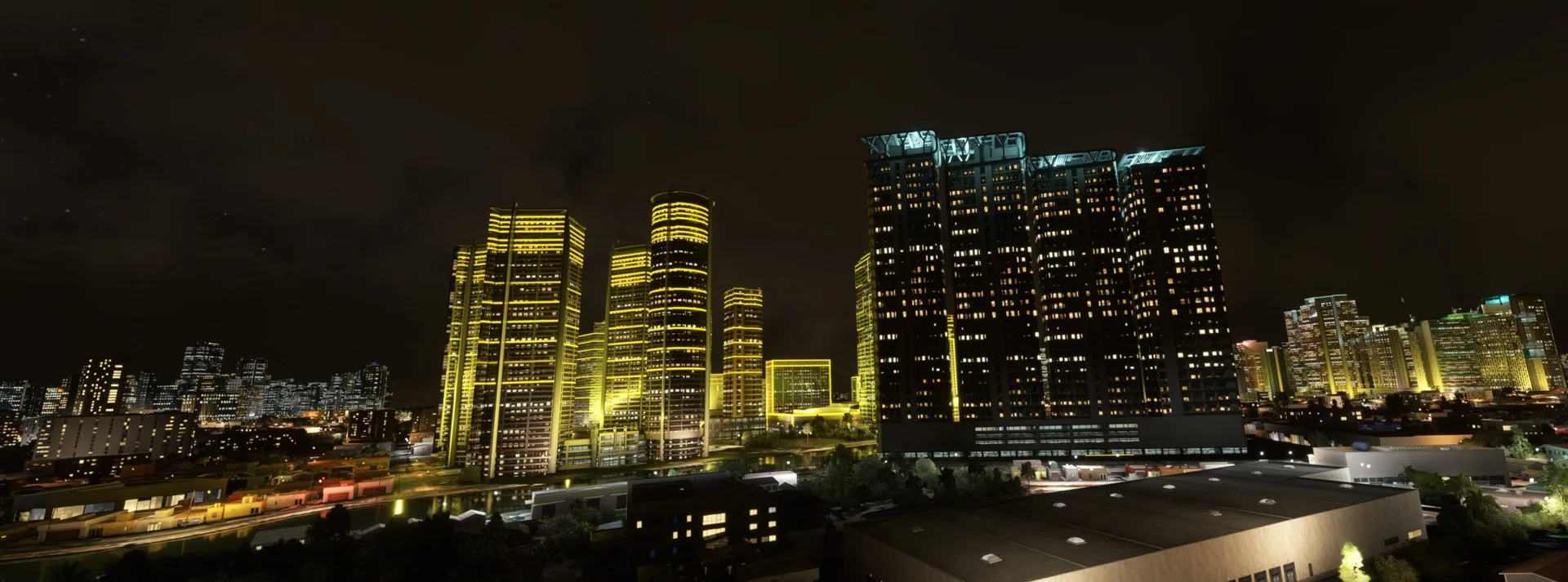
Night lighting
Night lighting effects based on real-life data.
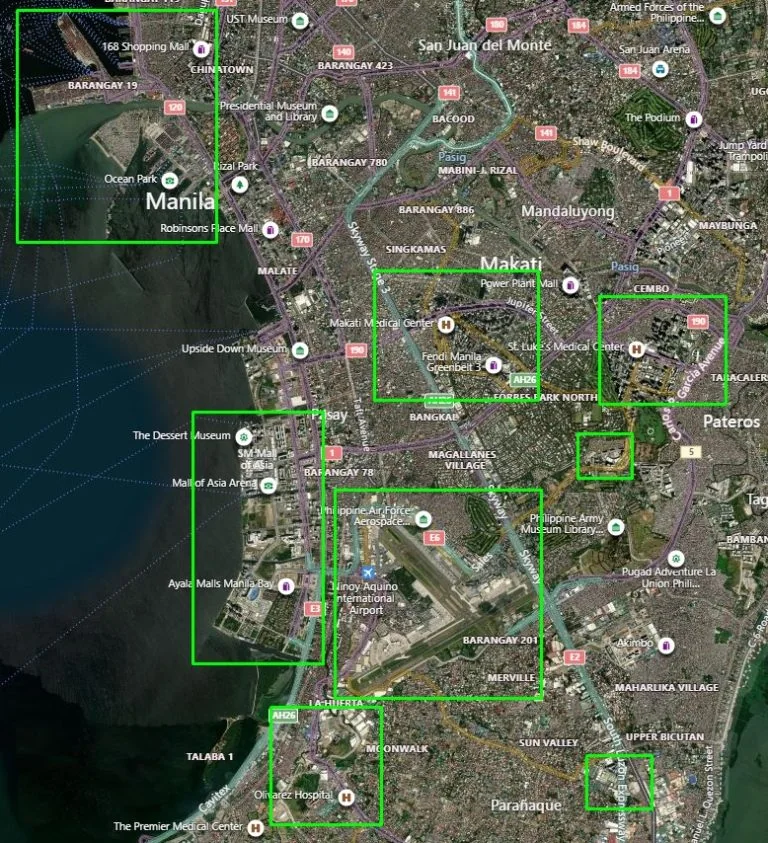
Enhanced locations
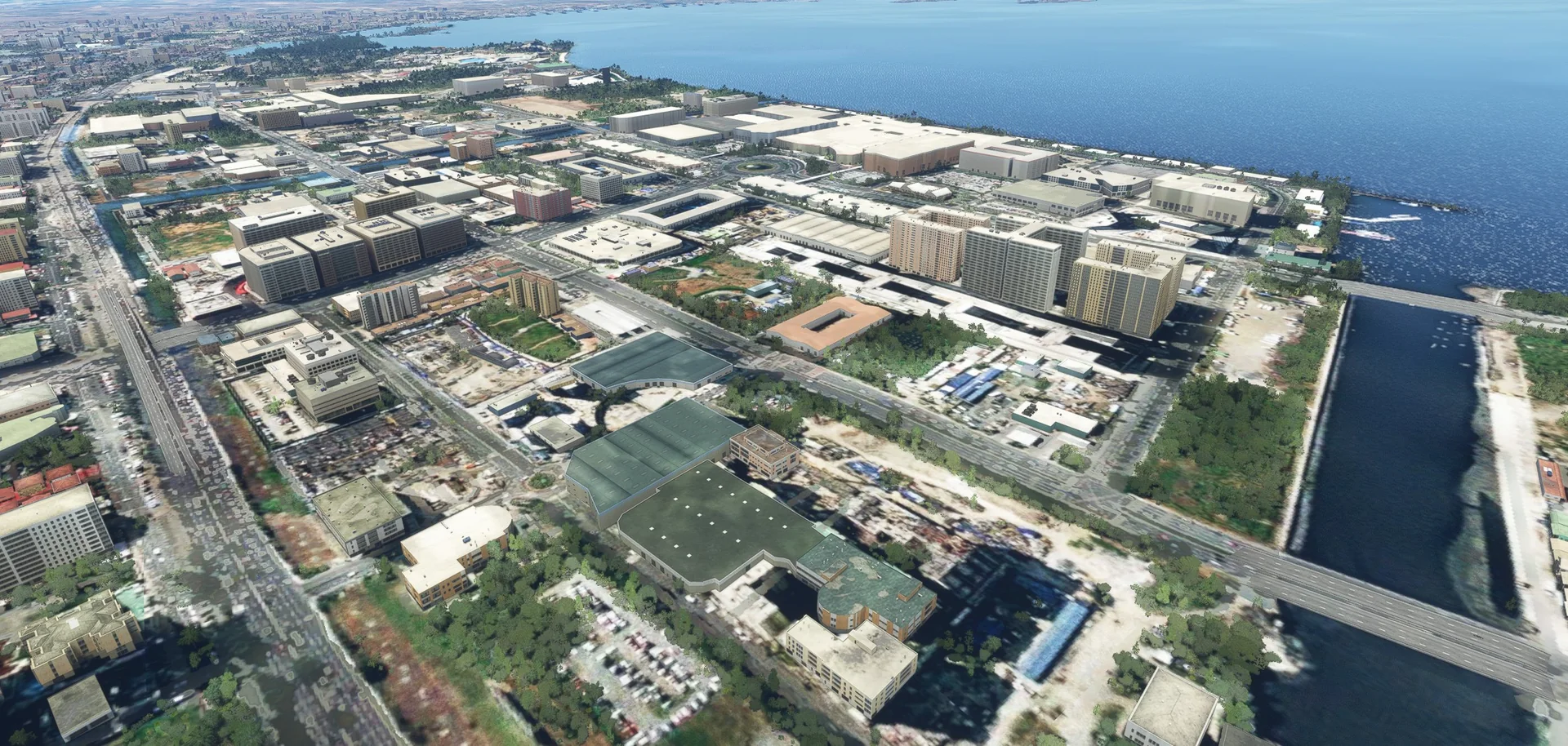
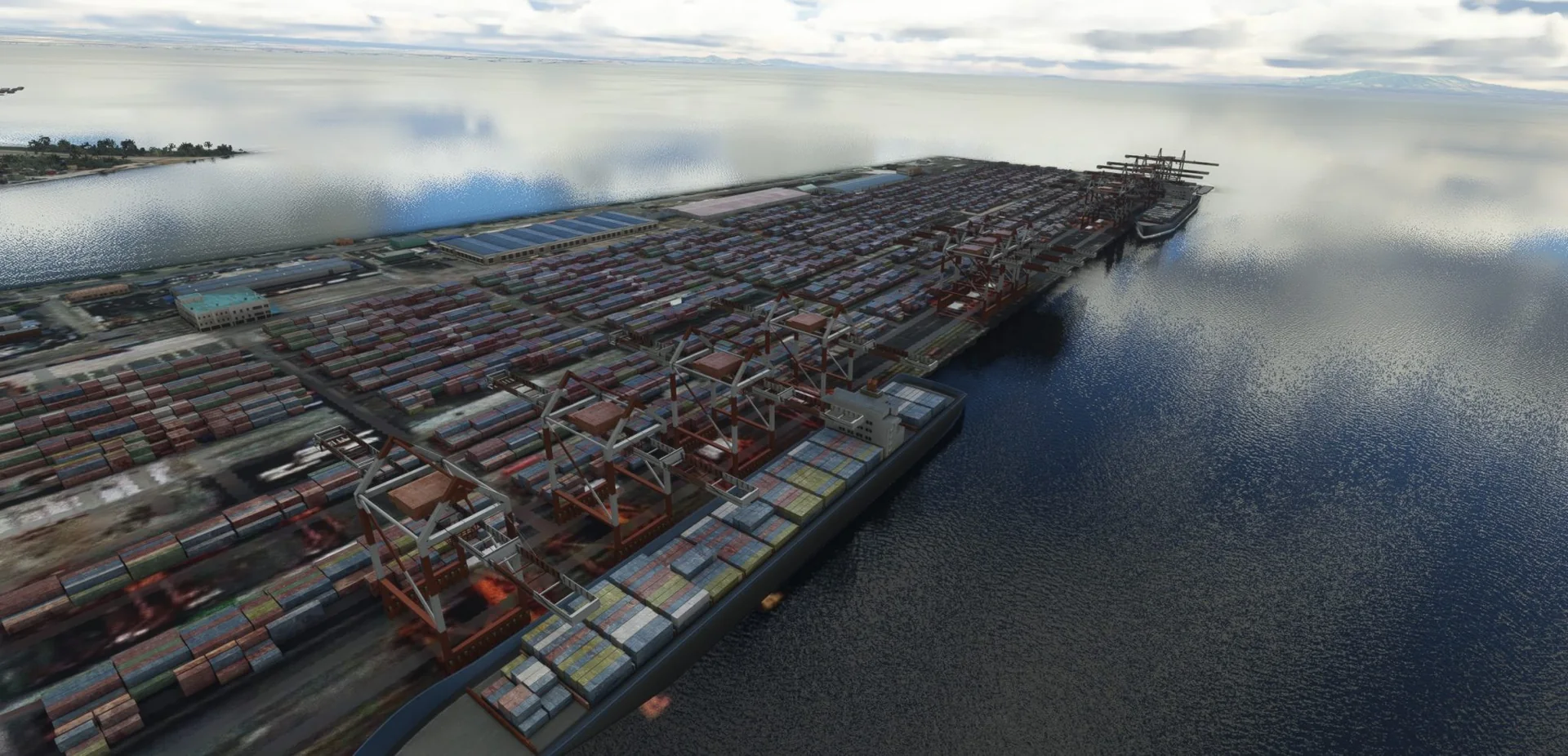
Makati City, Bonifacio Global City, the Mall of Asia area, the port area, SM City Bicutan and SM City Sucat.
Animated
Animated Ferris wheel, Okada fountains and billboards.
Skyline
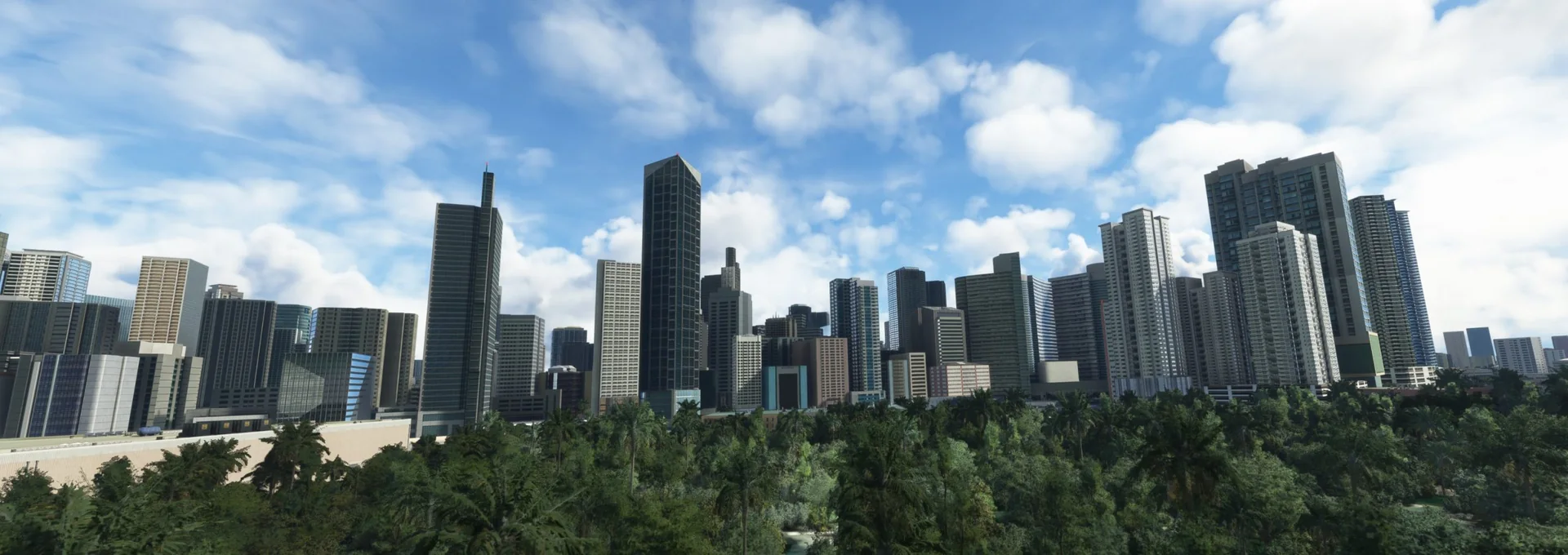
Hundreds of skyscrapers along Makati, Rockwell and BGC.
On the water
Cargo ships, cruise ships and yachts, and many more.
Free updates
Free lifetime updates for critical fixes.
Screenshots
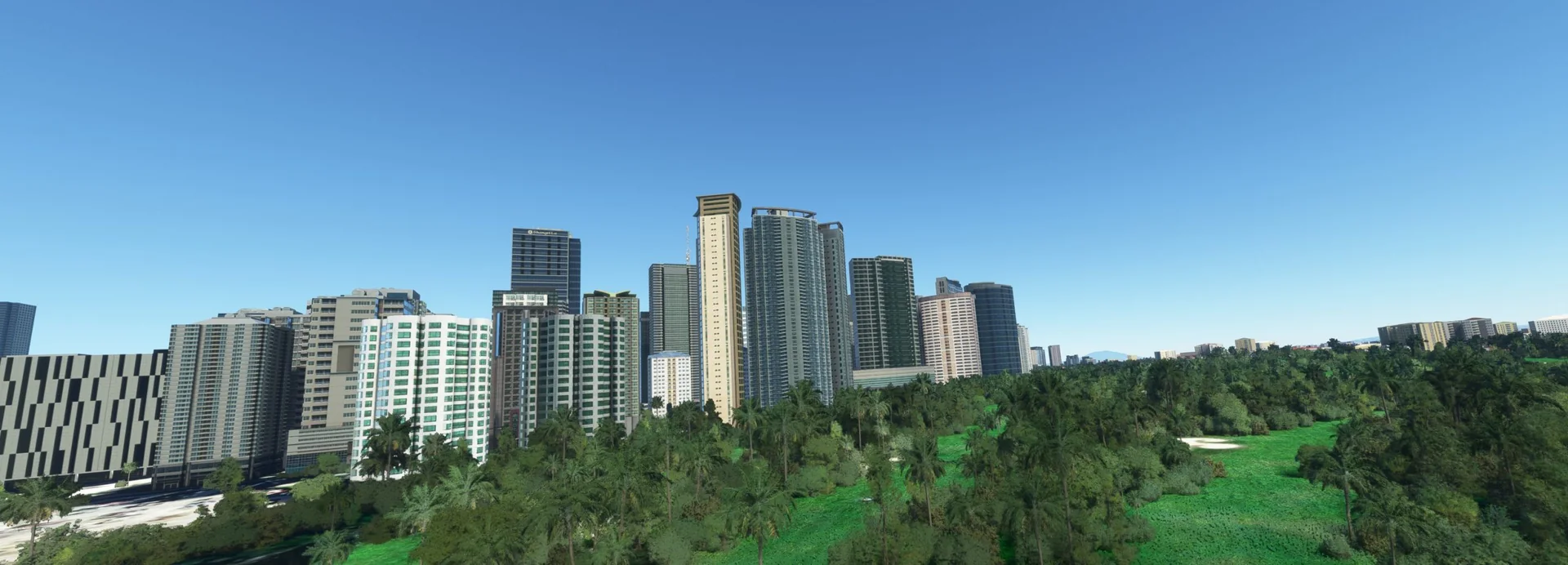
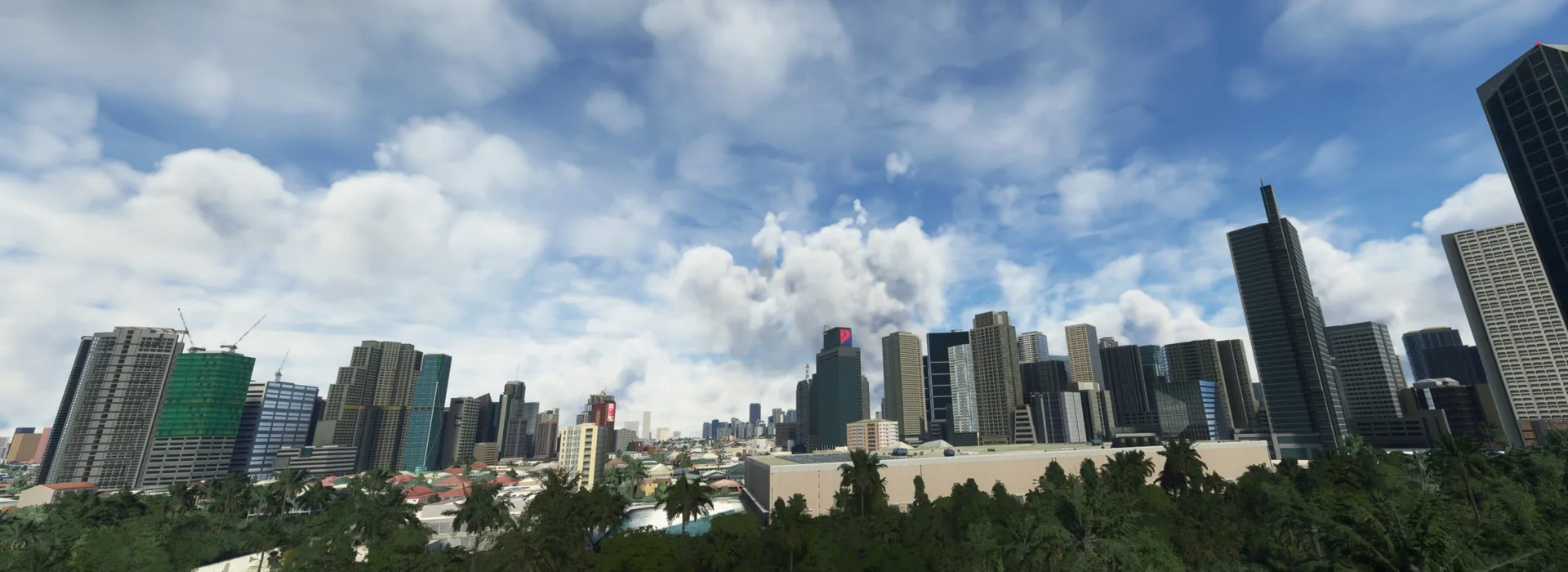
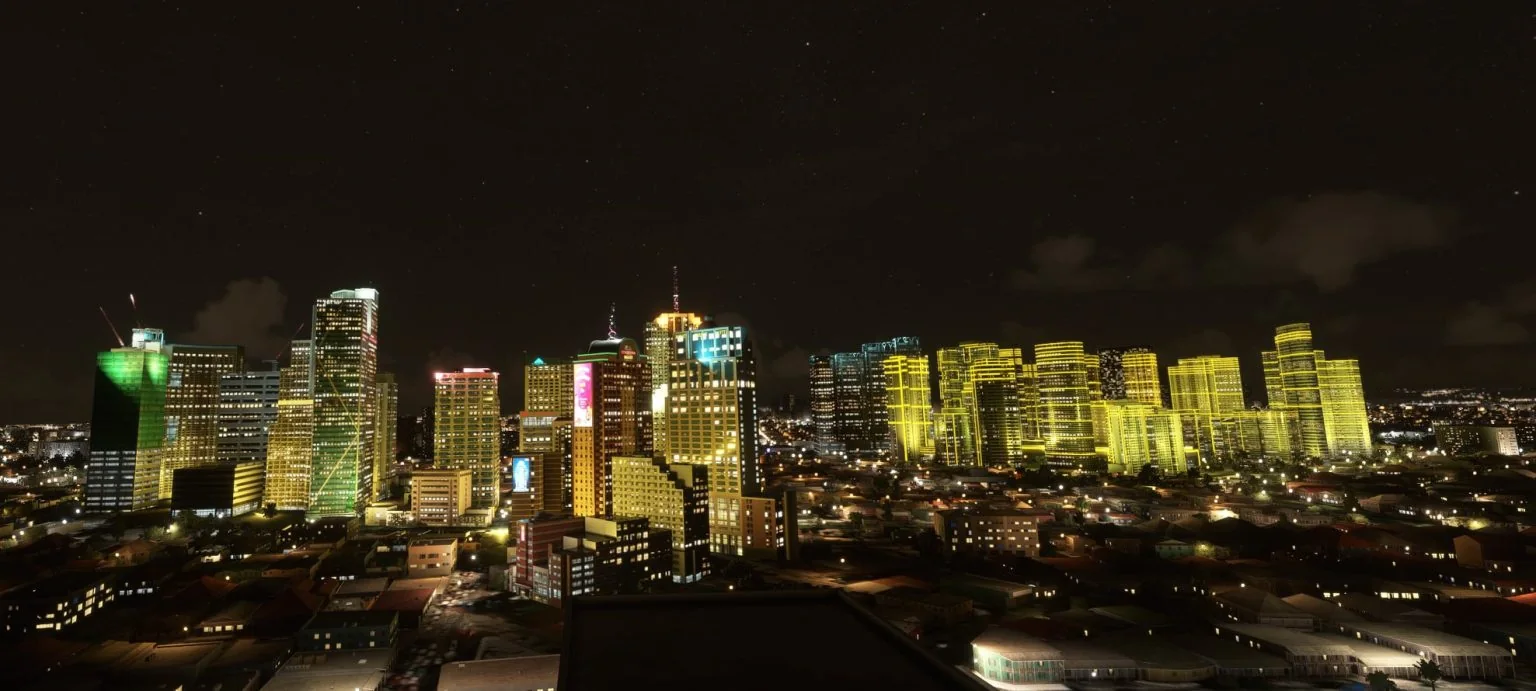
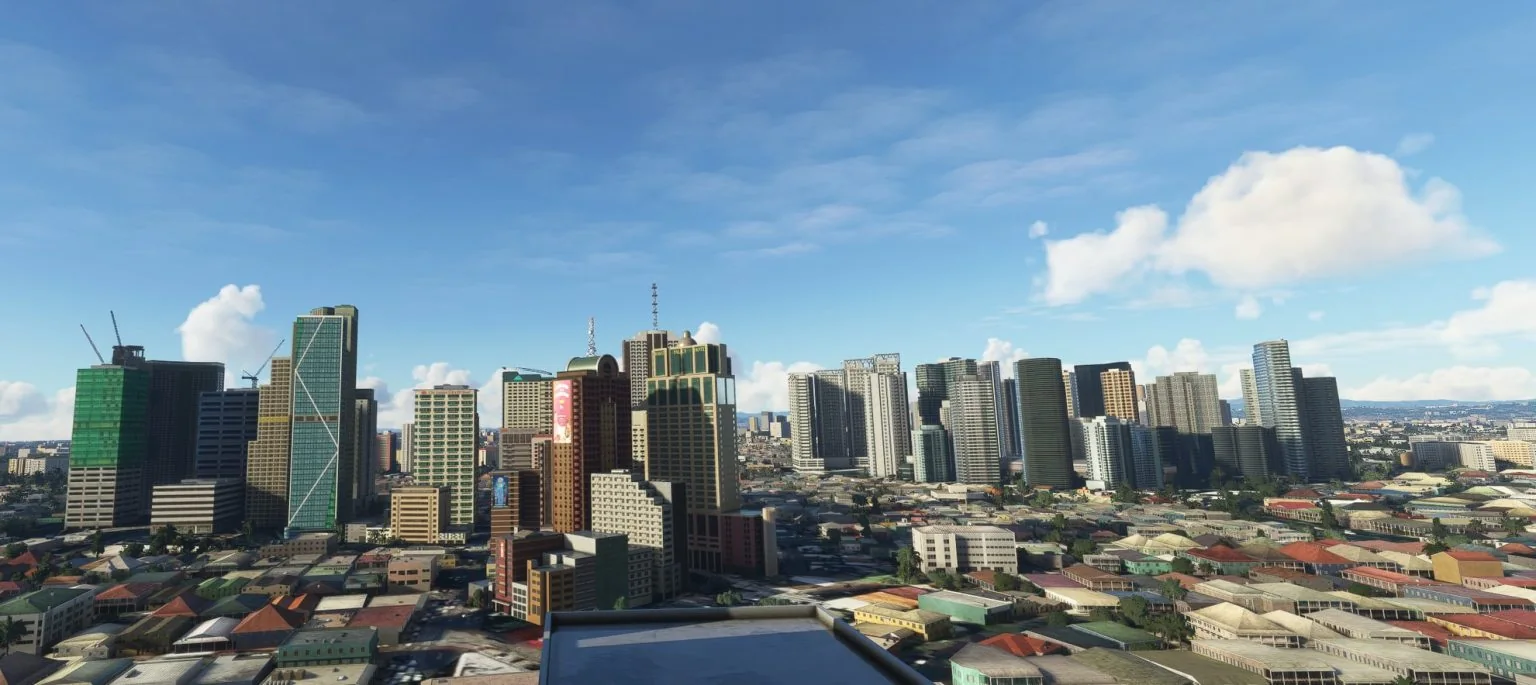
Where to buy
MANILA is sold through our partner stores.
Requirements
- Microsoft Flight Simulator 2020 or 2024
- GTX 1070 with 6-8 GB VRAM or equivalent
- 16 GB RAM
- i5 processor or equivalent
Read before buying
- Please check the screenshots before buying the product.
- Please remove any other Metro Manila scenery you have; this scenery is not compatible with it.
- Best combined with our Ninoy Aquino International Airport scenery.
- Please read our refund policy on the Contact Us / FAQ page.
Installation
- Bought on the Microsoft Marketplace or ORBX: the product installs for you.
- Bought as a download: unzip the file; you will see one folder named cloudsurfasiasimulations-city-manila.
- Drag and drop this folder into your MSFS Community folder.
- Restart the simulator, and you are done.
Finding the Community folder
Custom install location
If you installed your MSFS content (Packages folder) in a custom location, open that folder; the Community folder is inside it.
Microsoft Store / Xbox app
Type %localappdata% in Windows search, then open Packages\Microsoft.FlightSimulator_8wekyb3d8bbwe\LocalCache\Packages\Community.
Steam
Type %appdata% in Windows search, then open Microsoft Flight Simulator\Packages\Community.
Questions? Email simulations@cloudsurf.asia.