
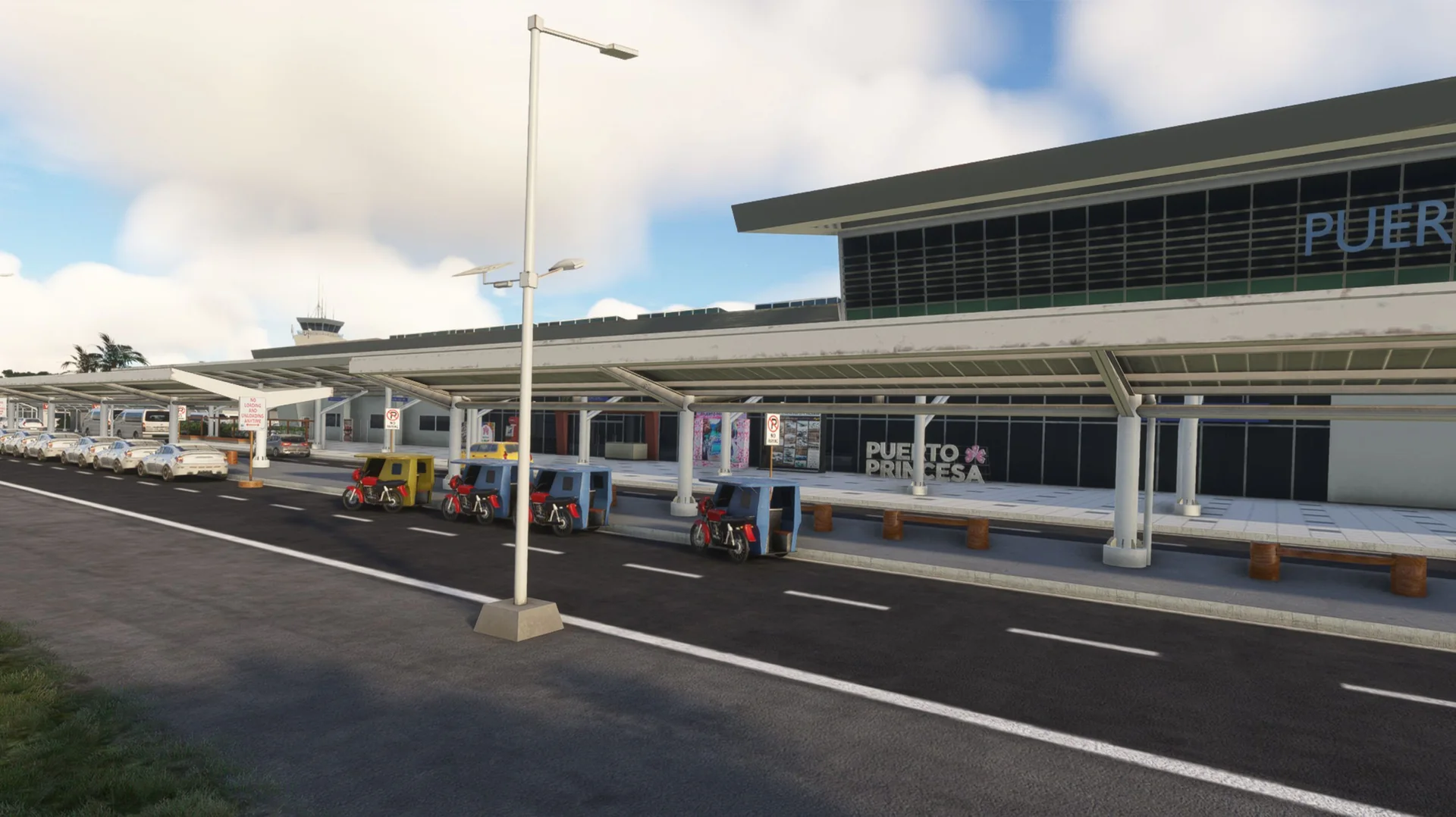
About the scenery
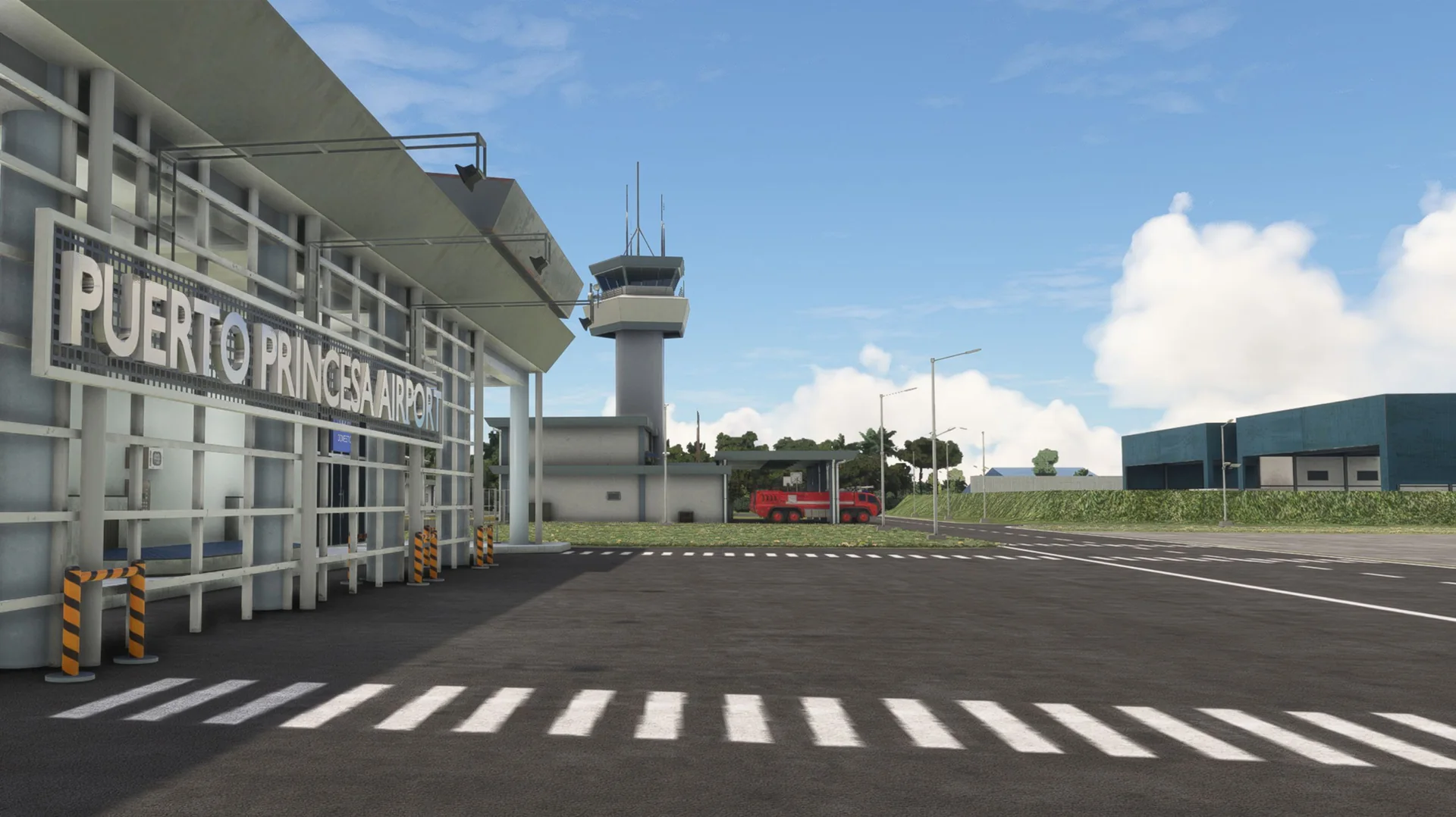
Puerto Princesa International Airport serves the general area of Puerto Princesa in the province of Palawan, Philippines. It is the main gateway to Palawan, a popular tourist destination in the westernmost province of the Philippines, and lies just 2 km from the city centre. It serves flights from Cebu Pacific, Philippine Airlines and AirAsia, most of them from Cebu and Manila.
The airport was built by American prisoners of war during World War II, from August 1942 to September 1944. Puerto Princesa opened to air travel as early as 1947, with Philippine Airlines flying DC-3s from Manila via San Jose, Mindoro; jet service followed in the 1970s and wide-body service by the late 1990s.
Features
Built from scratch for MSFS
Custom-built for Microsoft Flight Simulator 2020 and 2024.
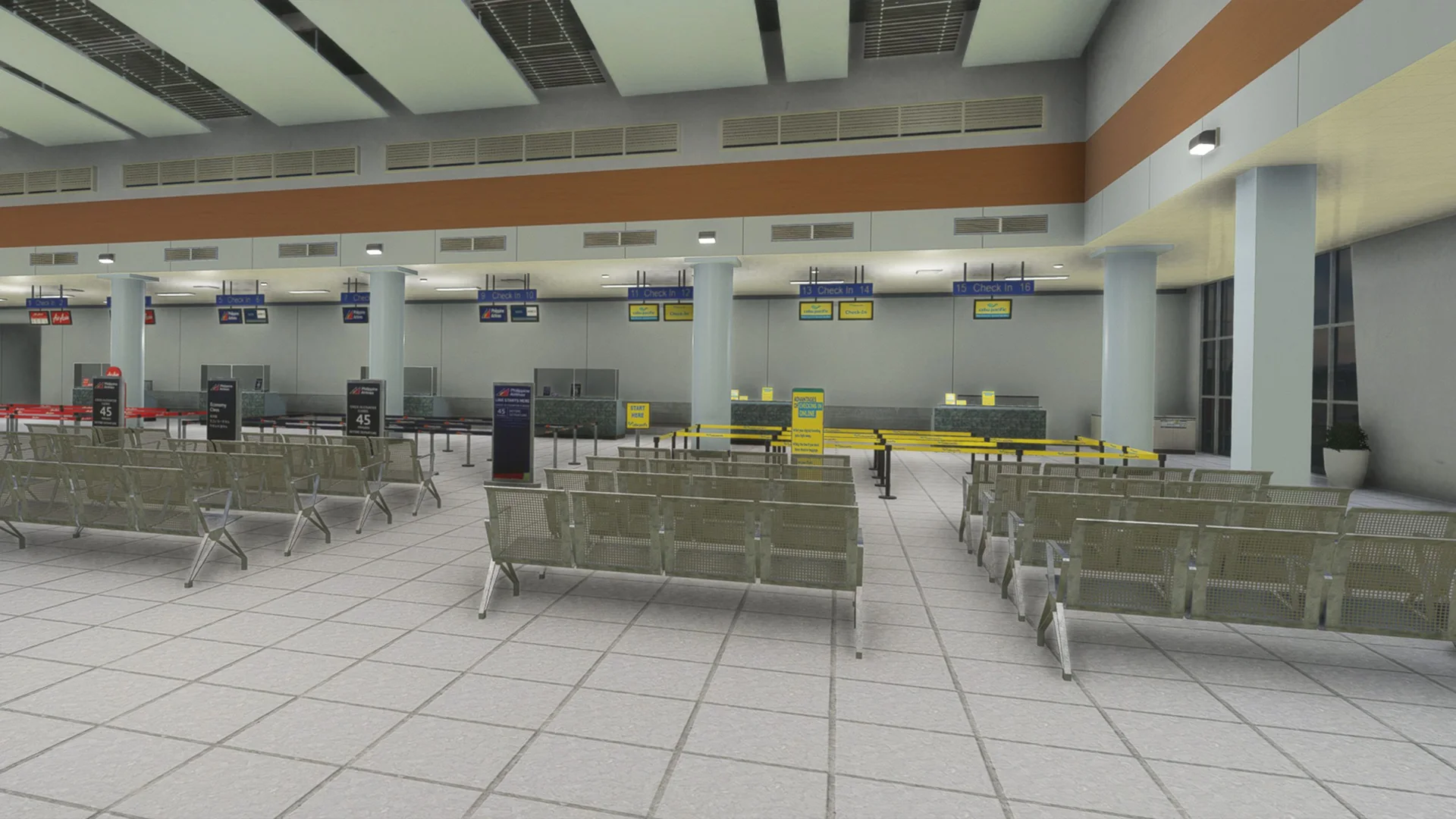
New terminal
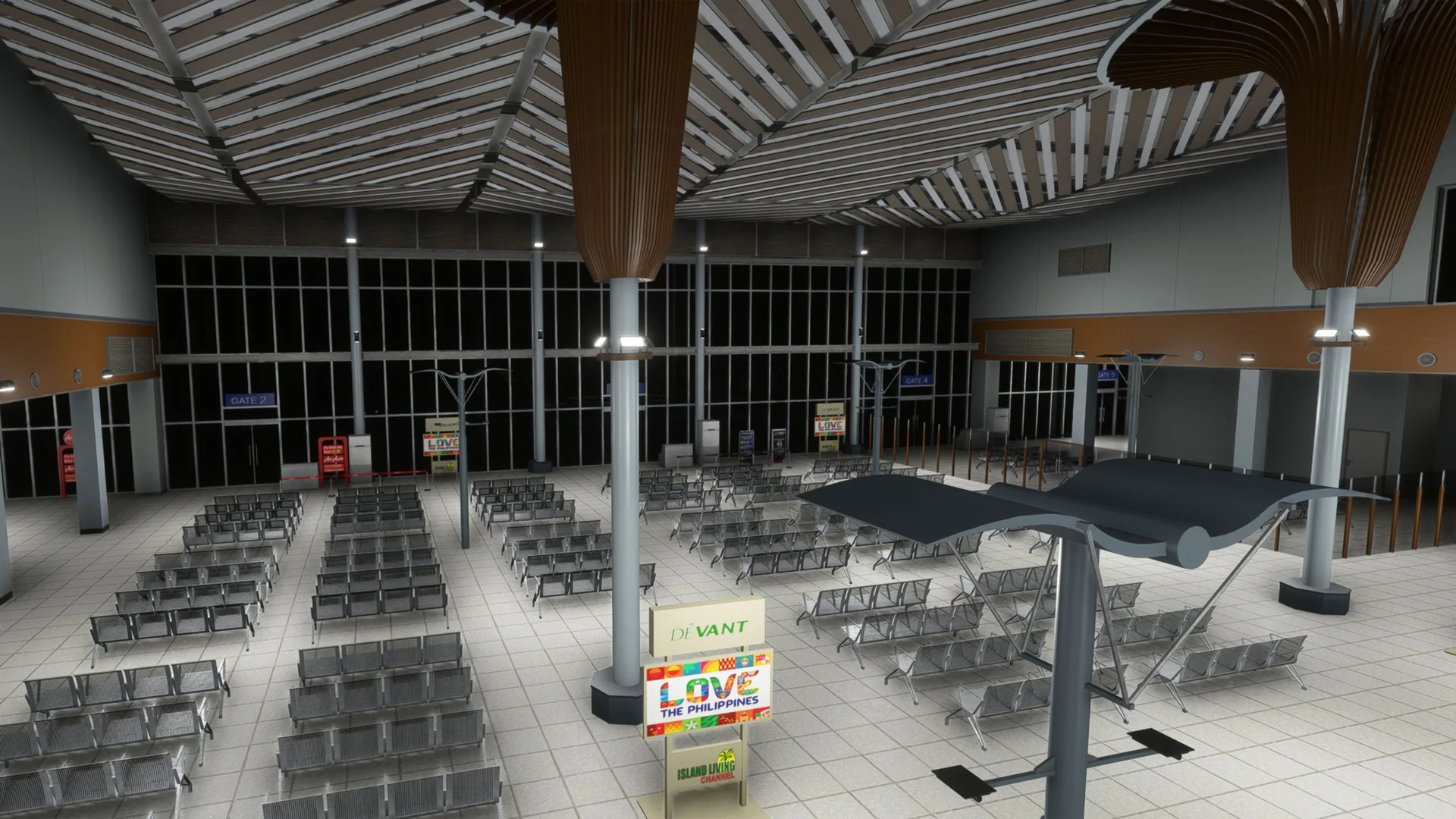
The new terminal fully modelled, with its interior.
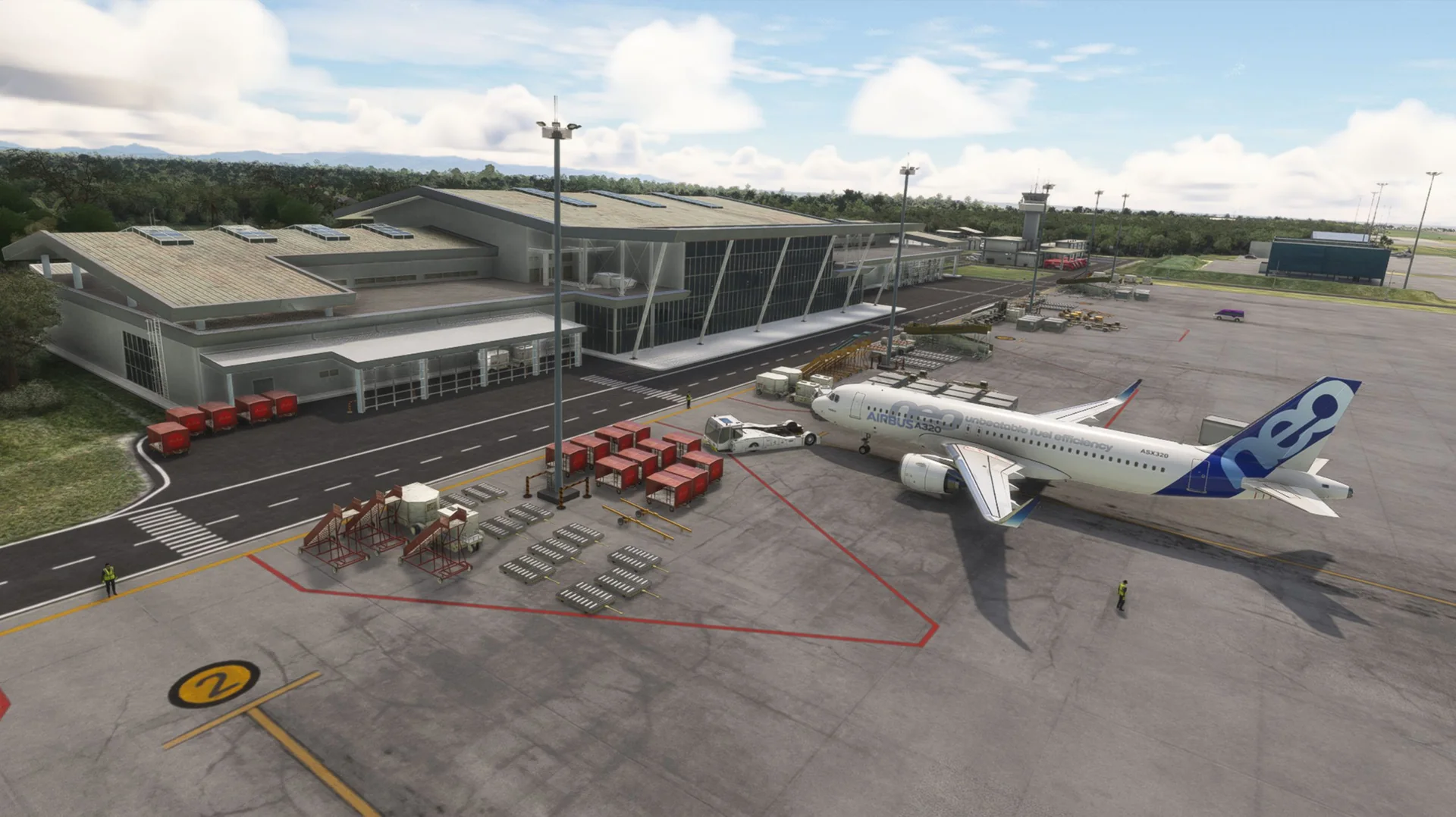
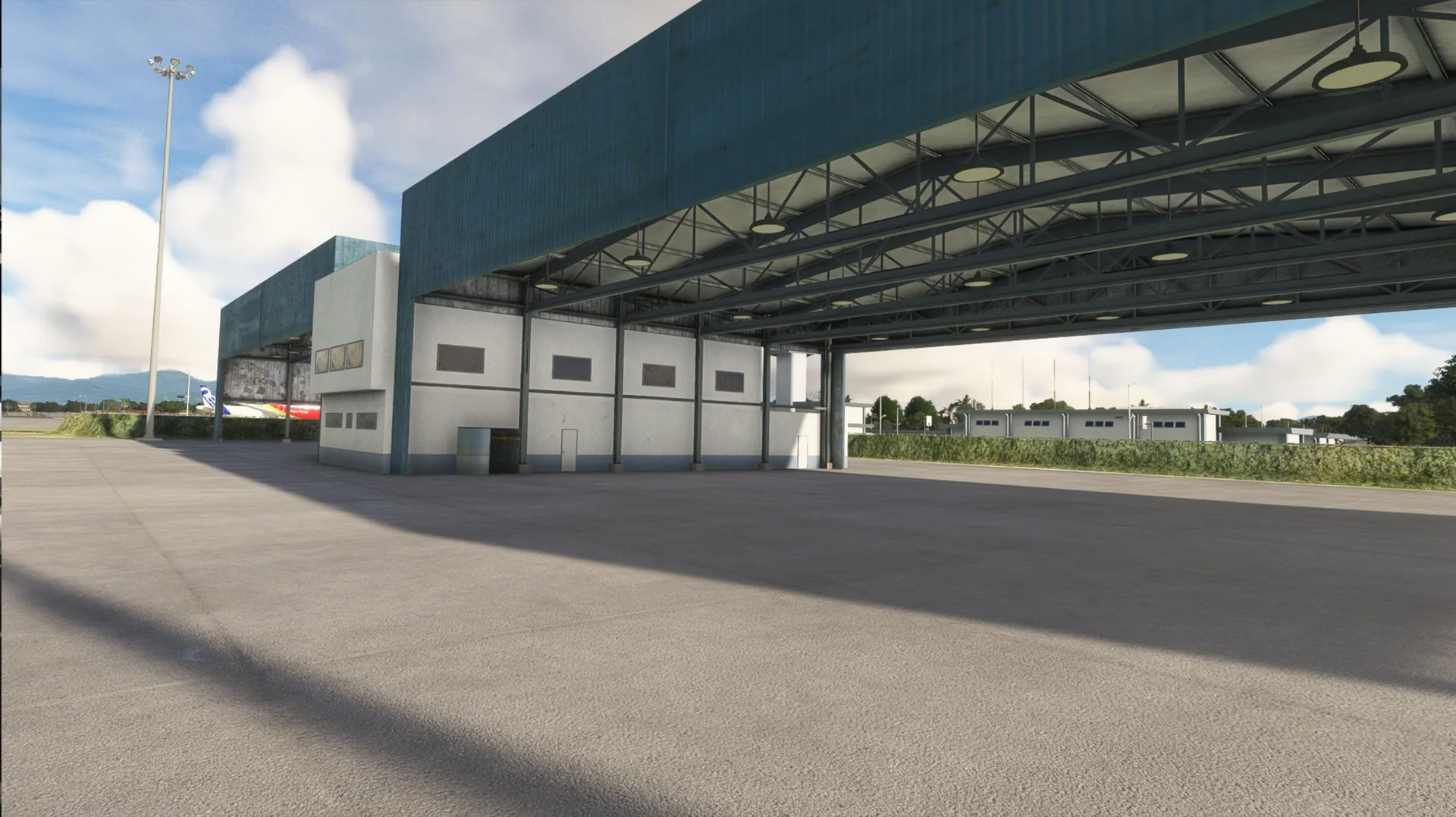
Custom objects
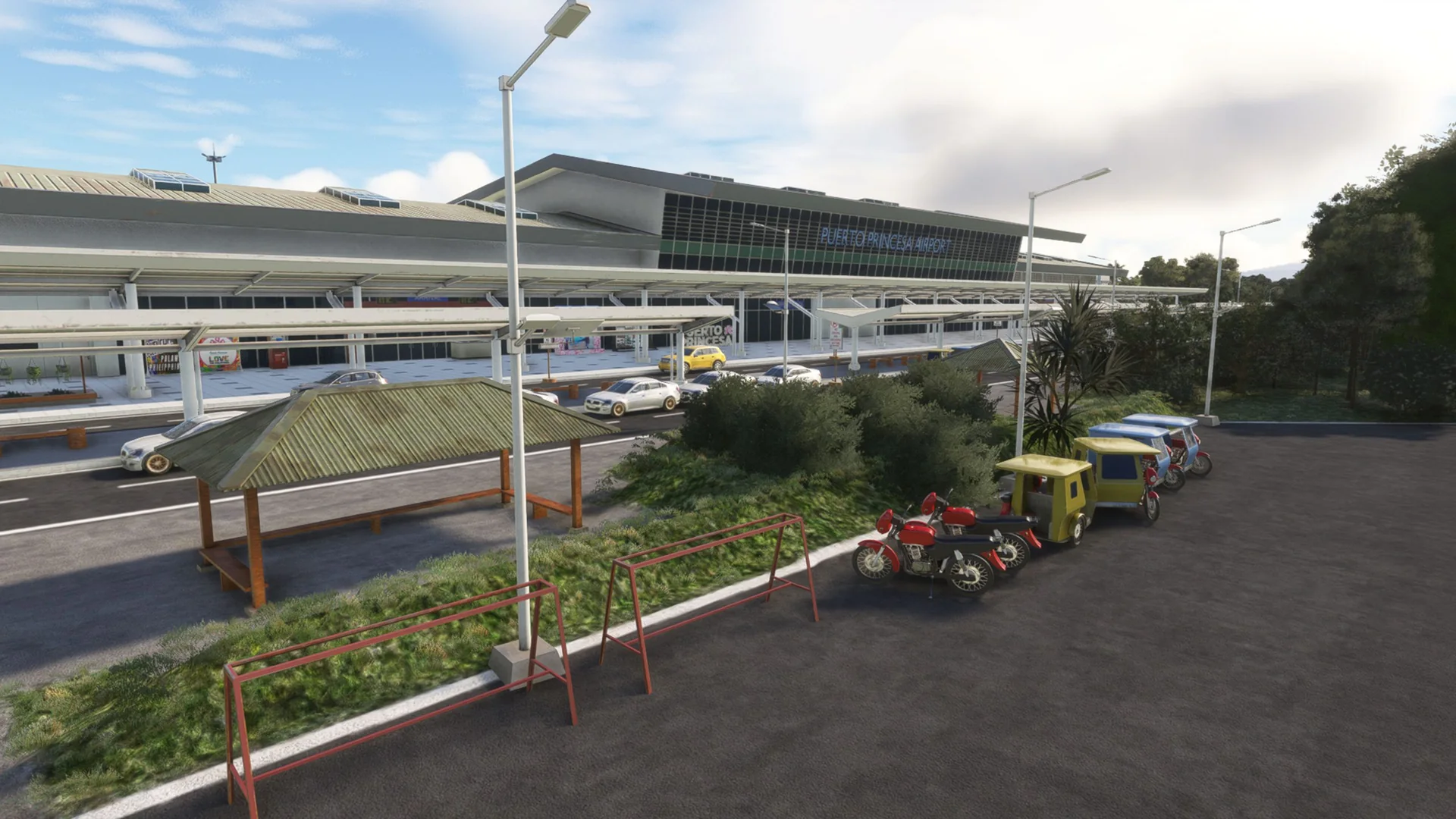
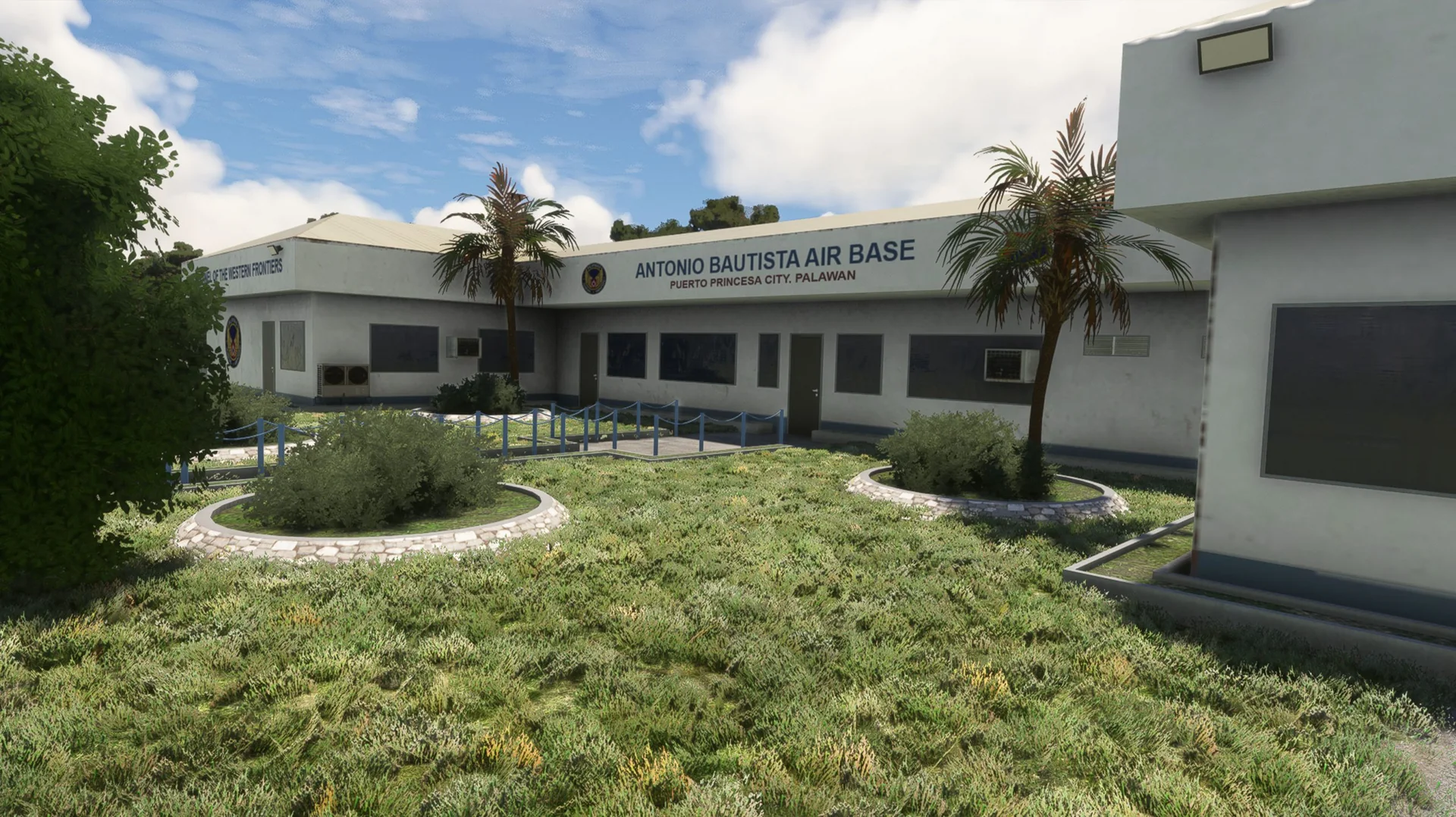
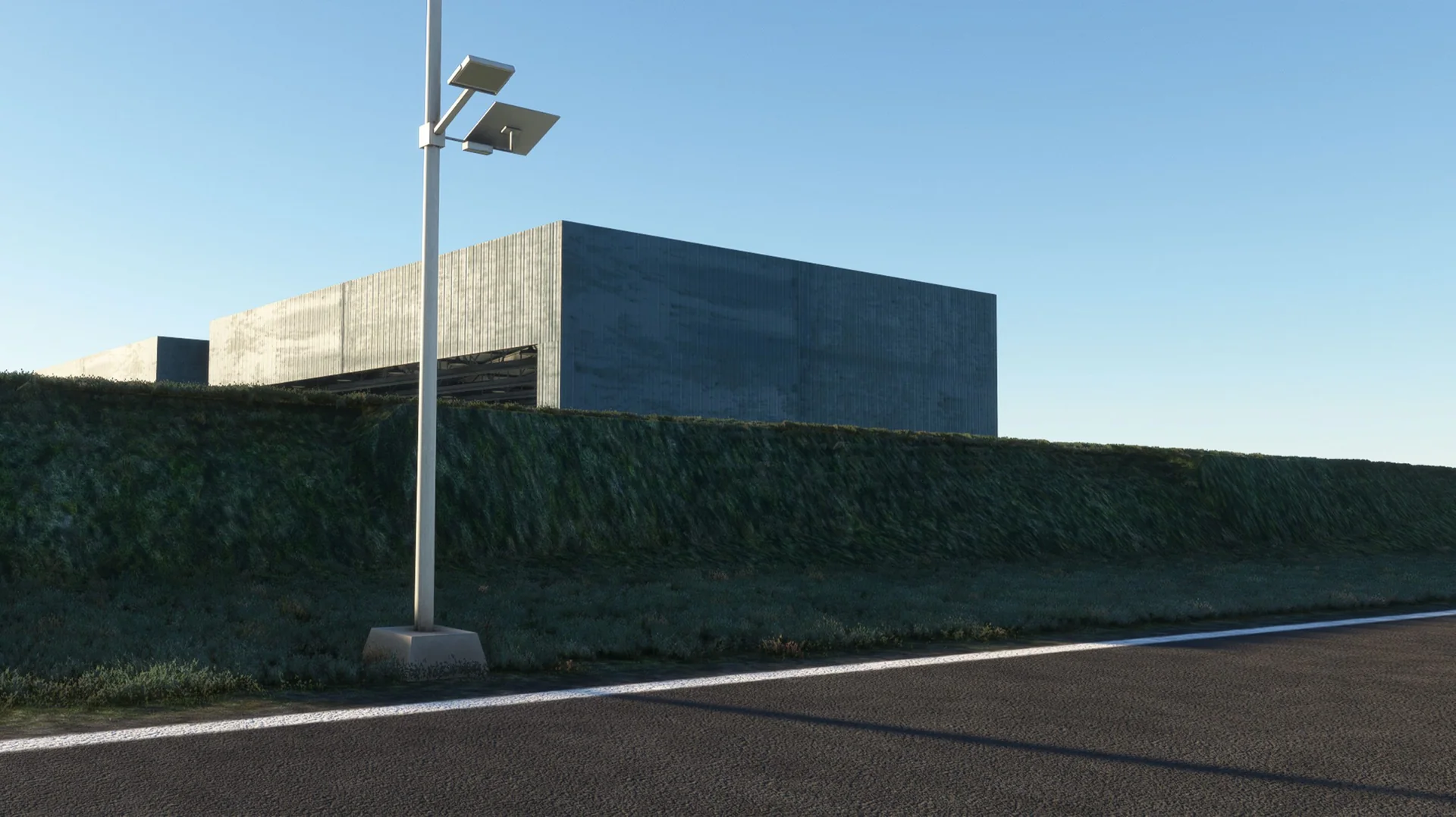
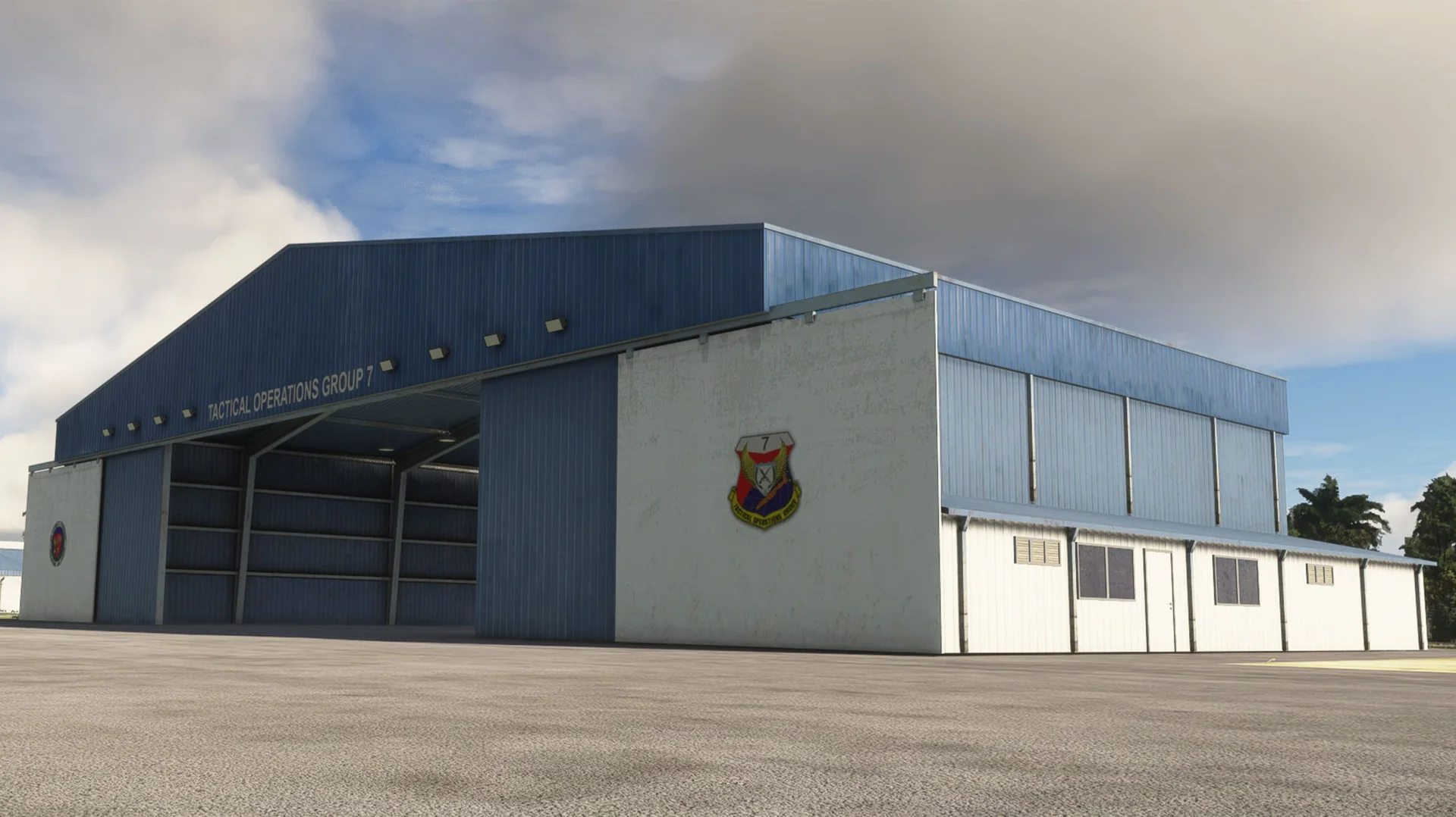
Full custom objects around the airport to represent it as accurately as possible.
Ground markings
Custom ground markings that replicate the actual airport.
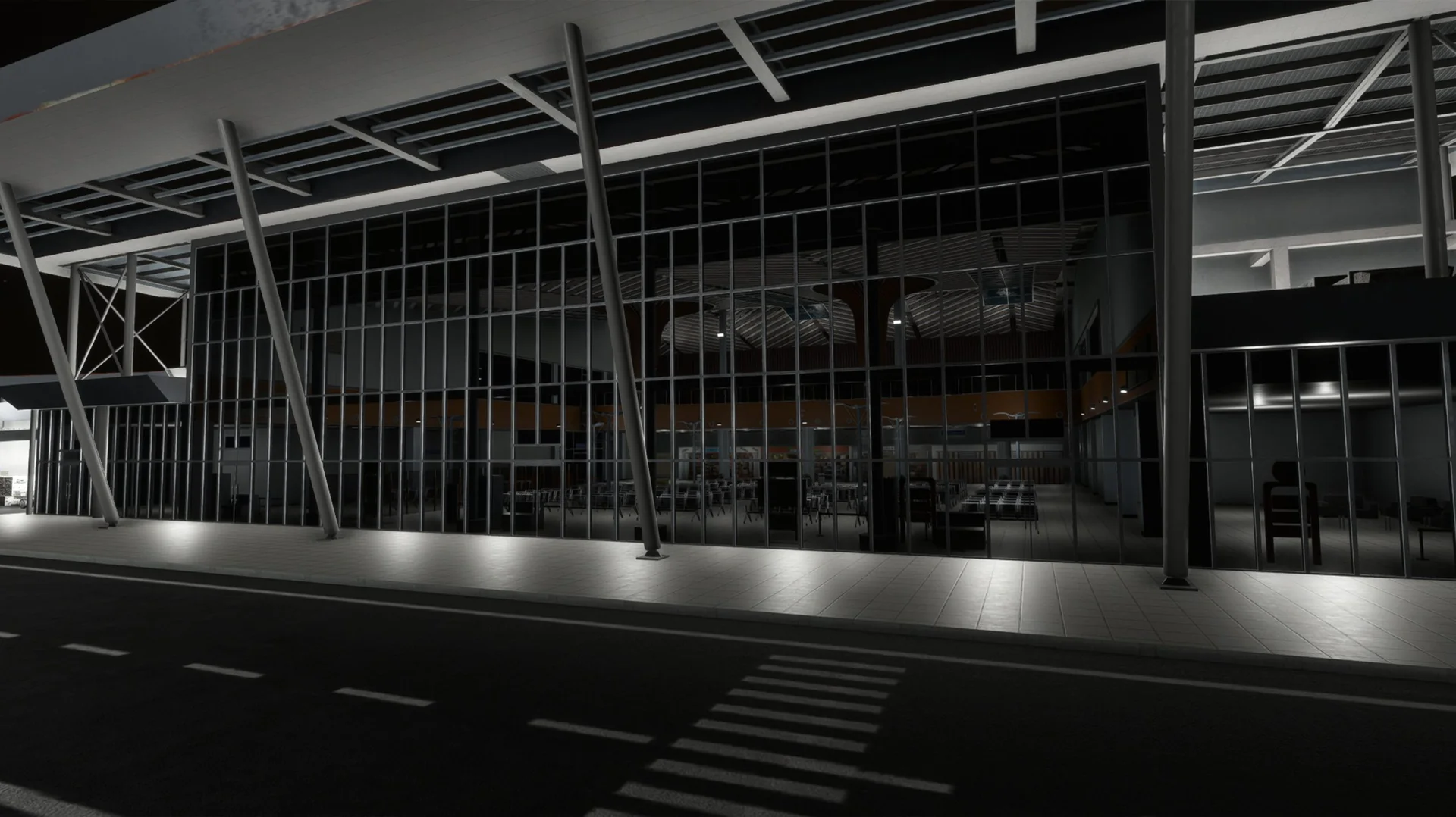
PBR and lighting
Full PBR textures for the best rendering, and custom lighting.
The city
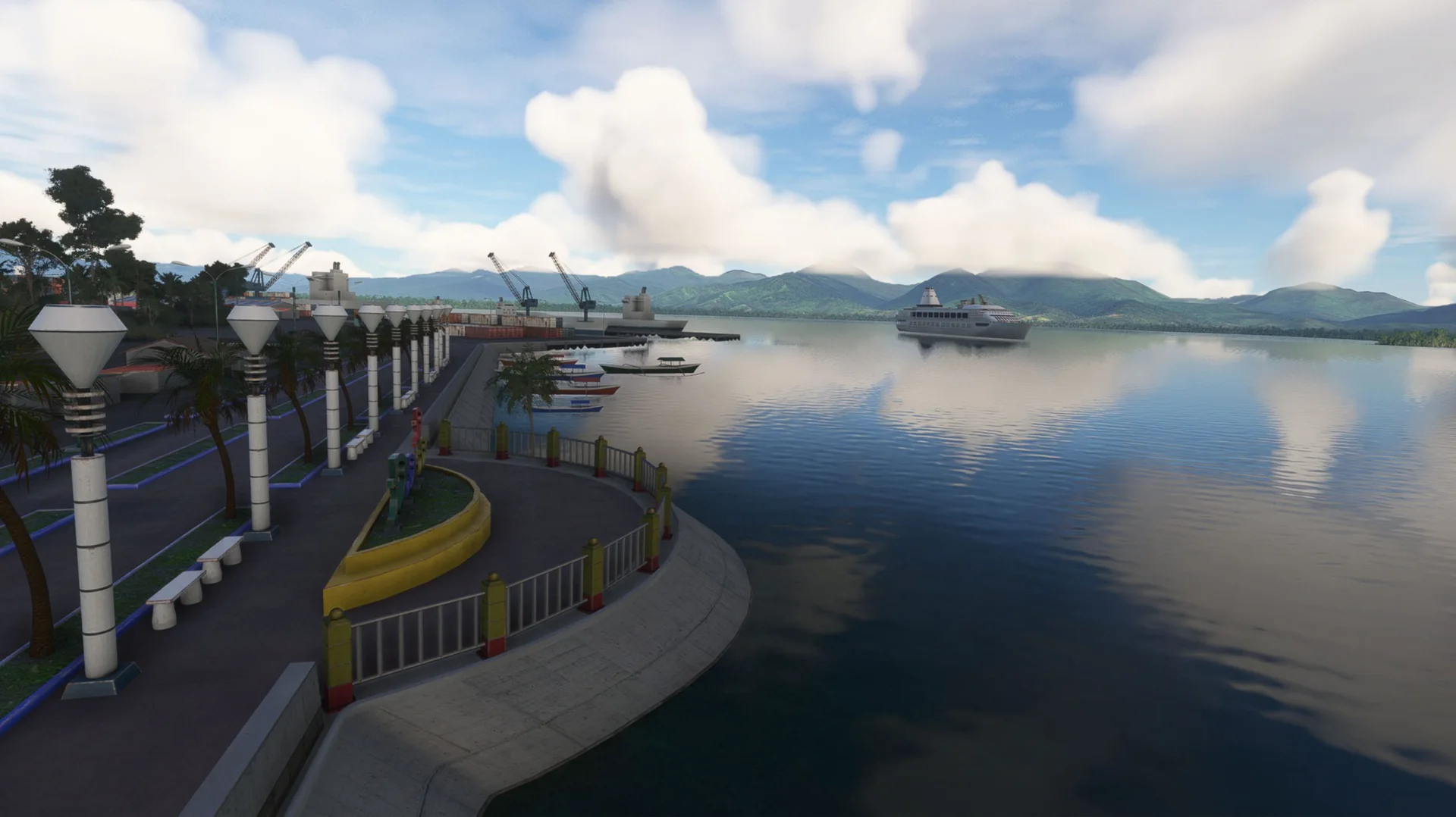
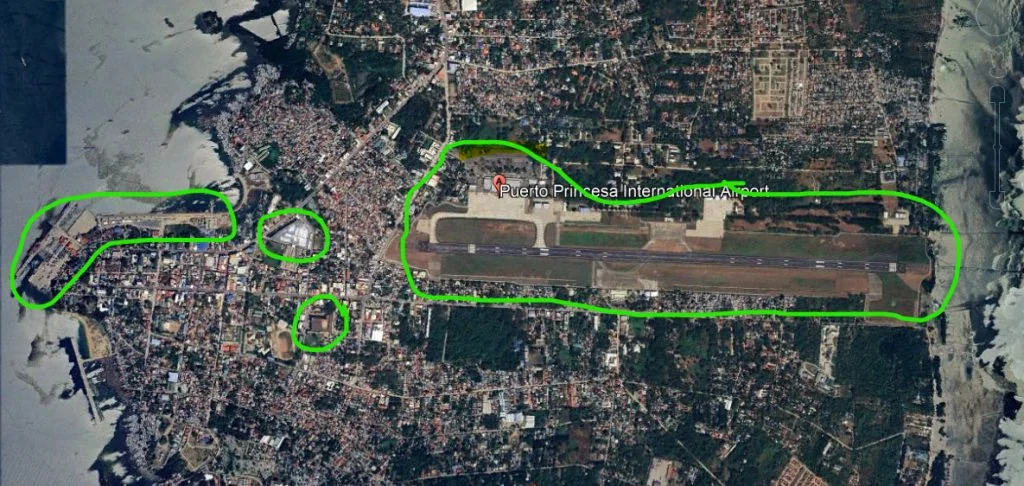
Notable public areas modelled: SM Mall, NCCC Mall, the bay area and the port.
Airport data
Up-to-date airport data.
Free updates
Future updates for fixes and compatibility at no cost.
Screenshots
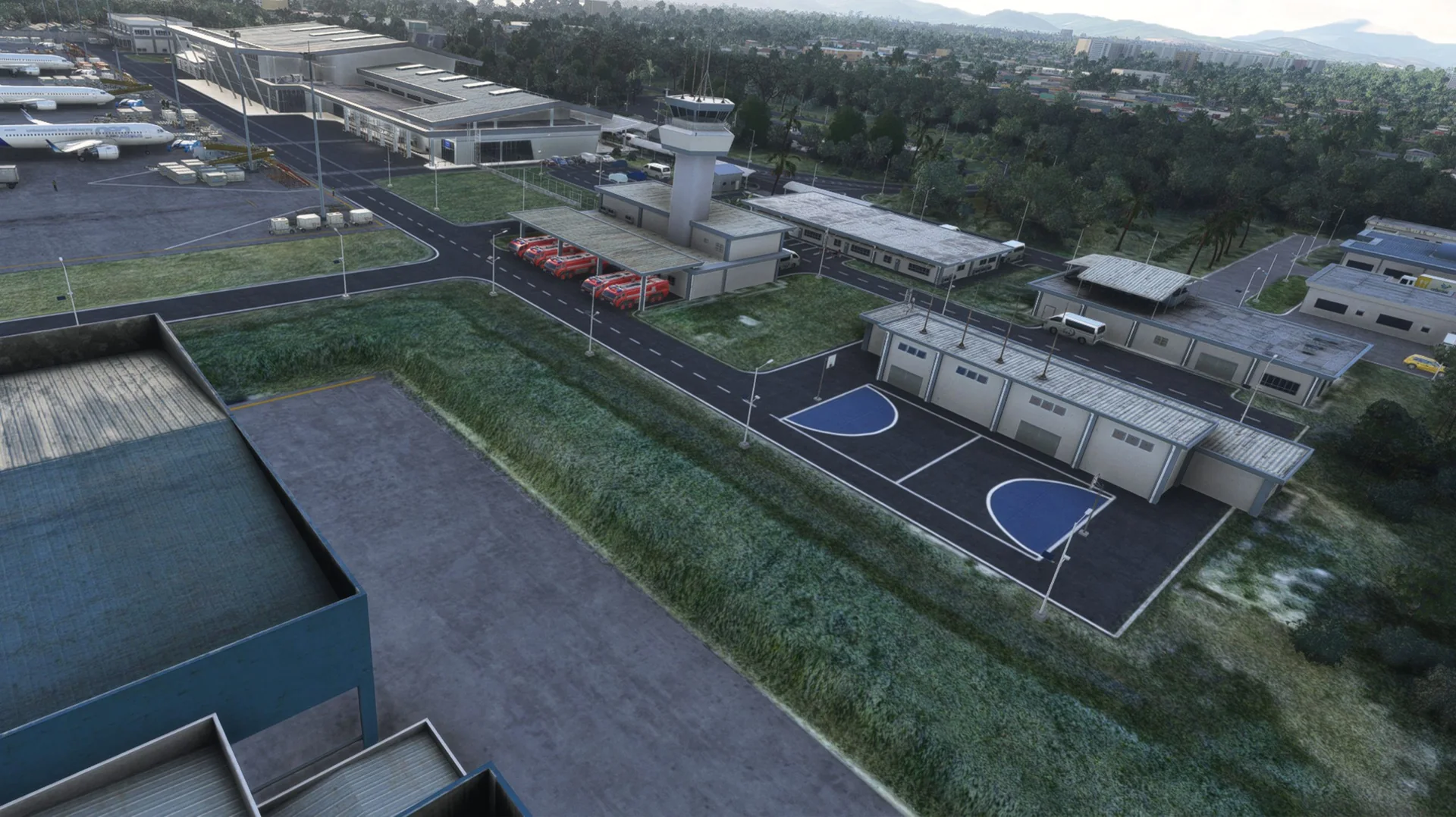
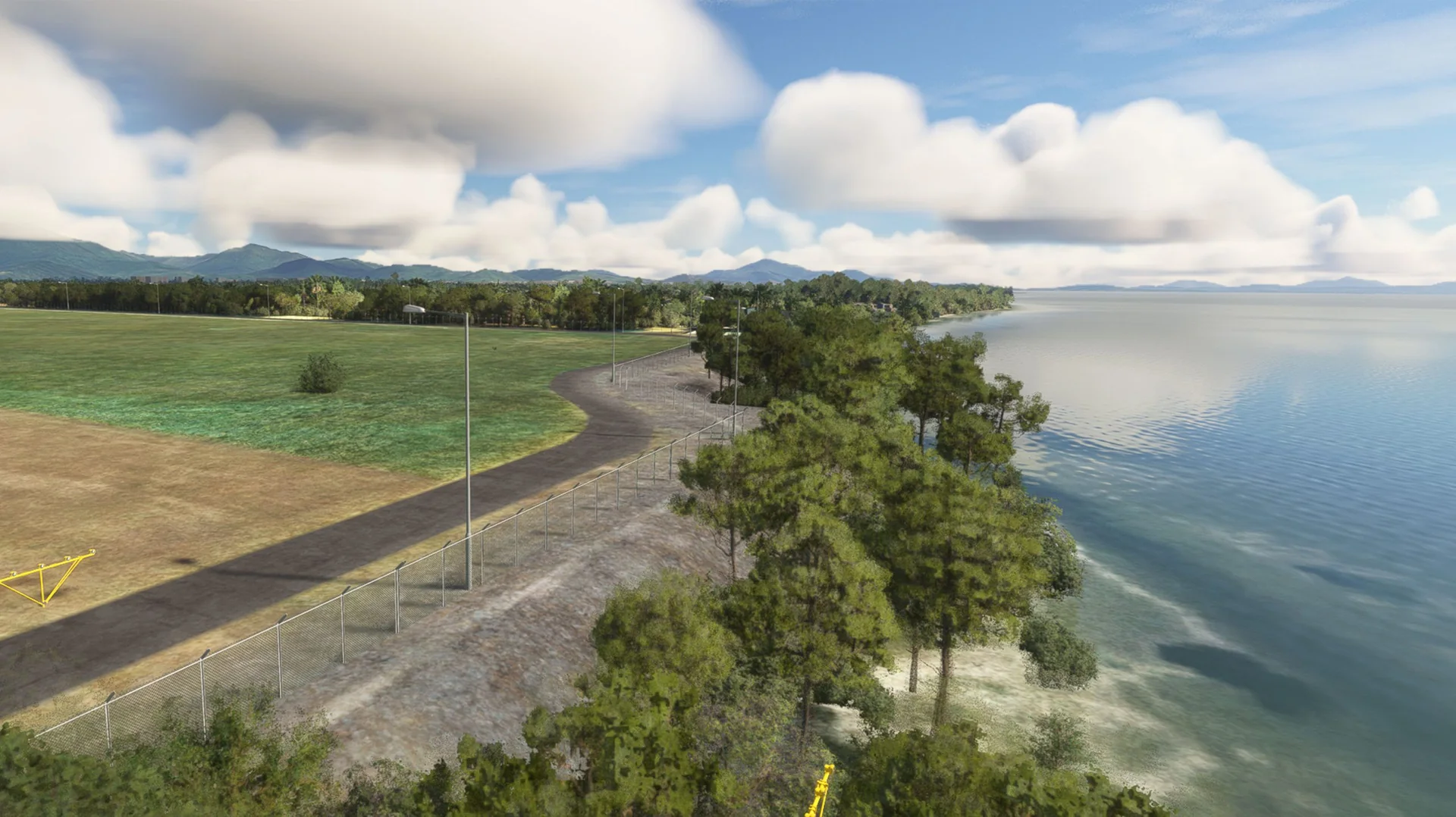
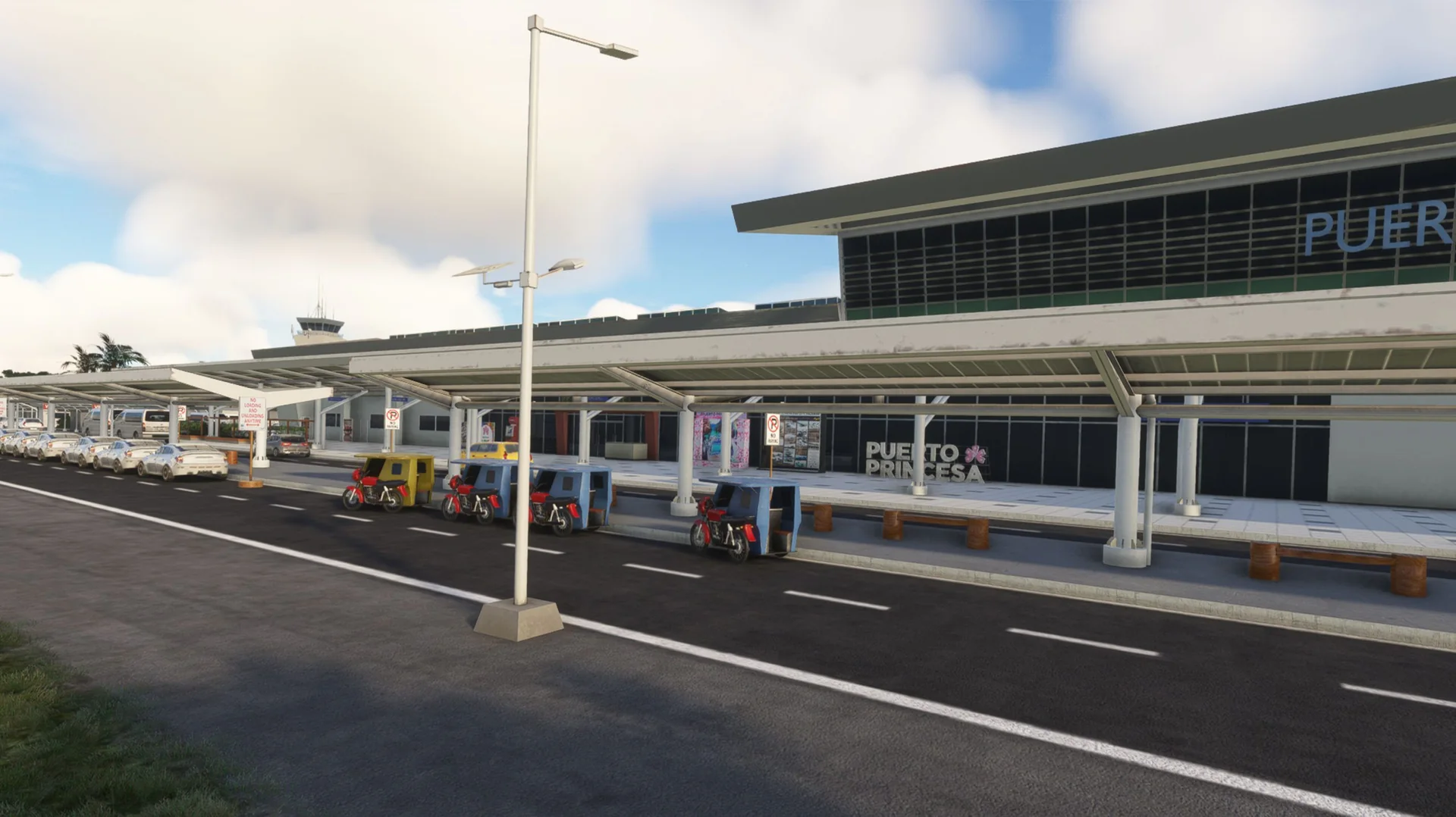
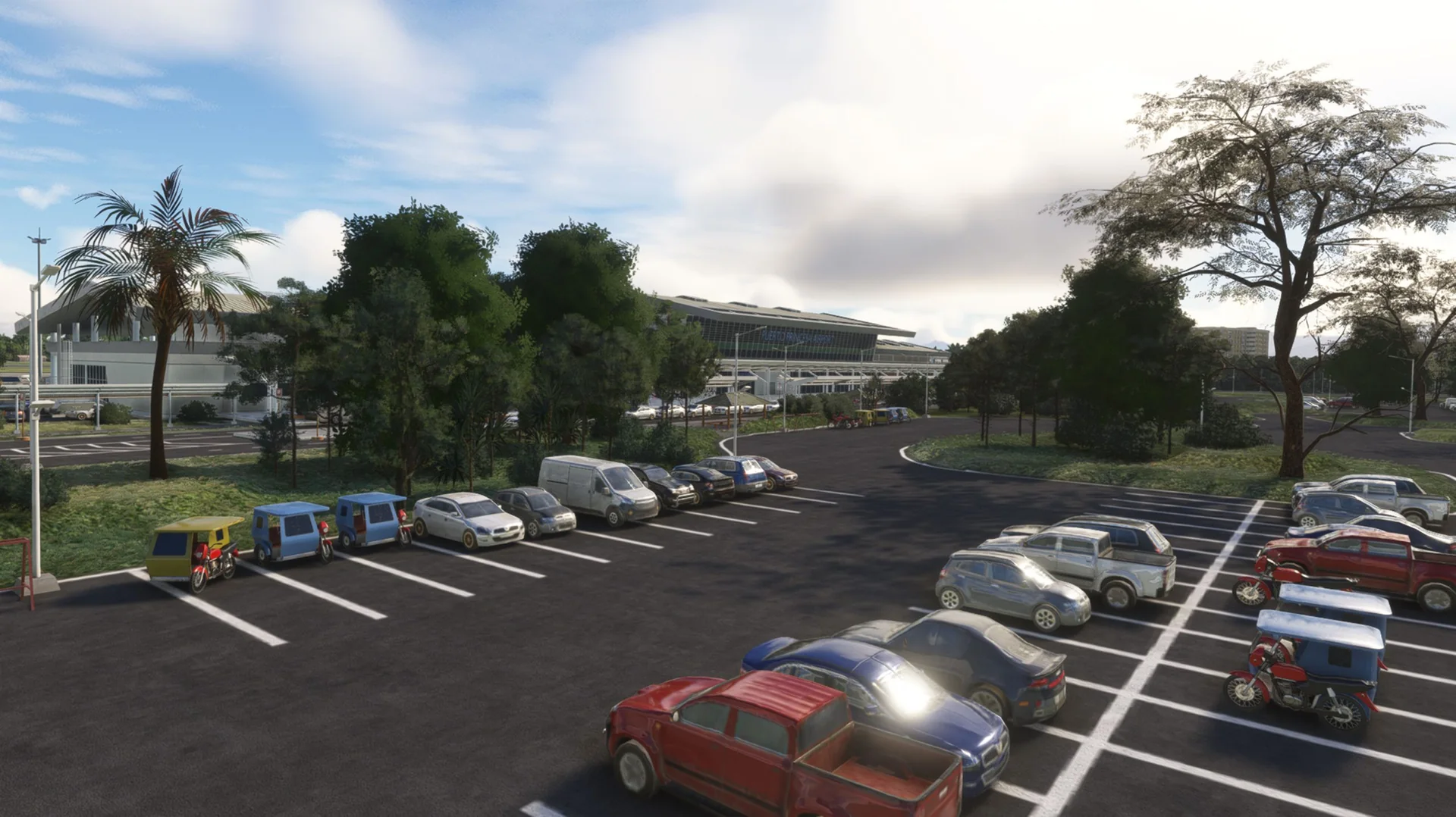
Where to buy
RPVP is sold through our partner stores.
Requirements
- Latest version of Microsoft Flight Simulator 2020 or 2024
- Core i5 or equivalent, at least
- 6-8 GB RAM at least; 16 GB or more is best
- GPU: GTX 1050 or better with at least 6 GB VRAM (lower GPUs not tested, but reported to work)
- MSFS settings Medium to High recommended (depends on your machine)
Read before buying
- Please check the screenshots before buying the product.
- Please read our refund policy on the Contact Us / FAQ page.
- Free updates are provided for bug fixes and compatibility issues.
Installation
- Install the product with the app of the store you bought it from (ORBX, iniBuilds, Contrail, Simmarket).
- Remove any other Puerto Princesa City / RPVP scenery to avoid conflicts.
- Restart the simulator after installing.
Finding the Community folder
Custom install location
If you installed your MSFS content (Packages folder) in a custom location, open that folder; the Community folder is inside it.
Microsoft Store / Xbox app
Type %localappdata% in Windows search, then open Packages\Microsoft.FlightSimulator_8wekyb3d8bbwe\LocalCache\Packages\Community.
Steam
Type %appdata% in Windows search, then open Microsoft Flight Simulator\Packages\Community.
Questions? Email support@cloudsurfasia-simulations.com.